Sign in with your Student ID and take a test
Sign in with the ID on your card, take a test on your phone, and see your result.
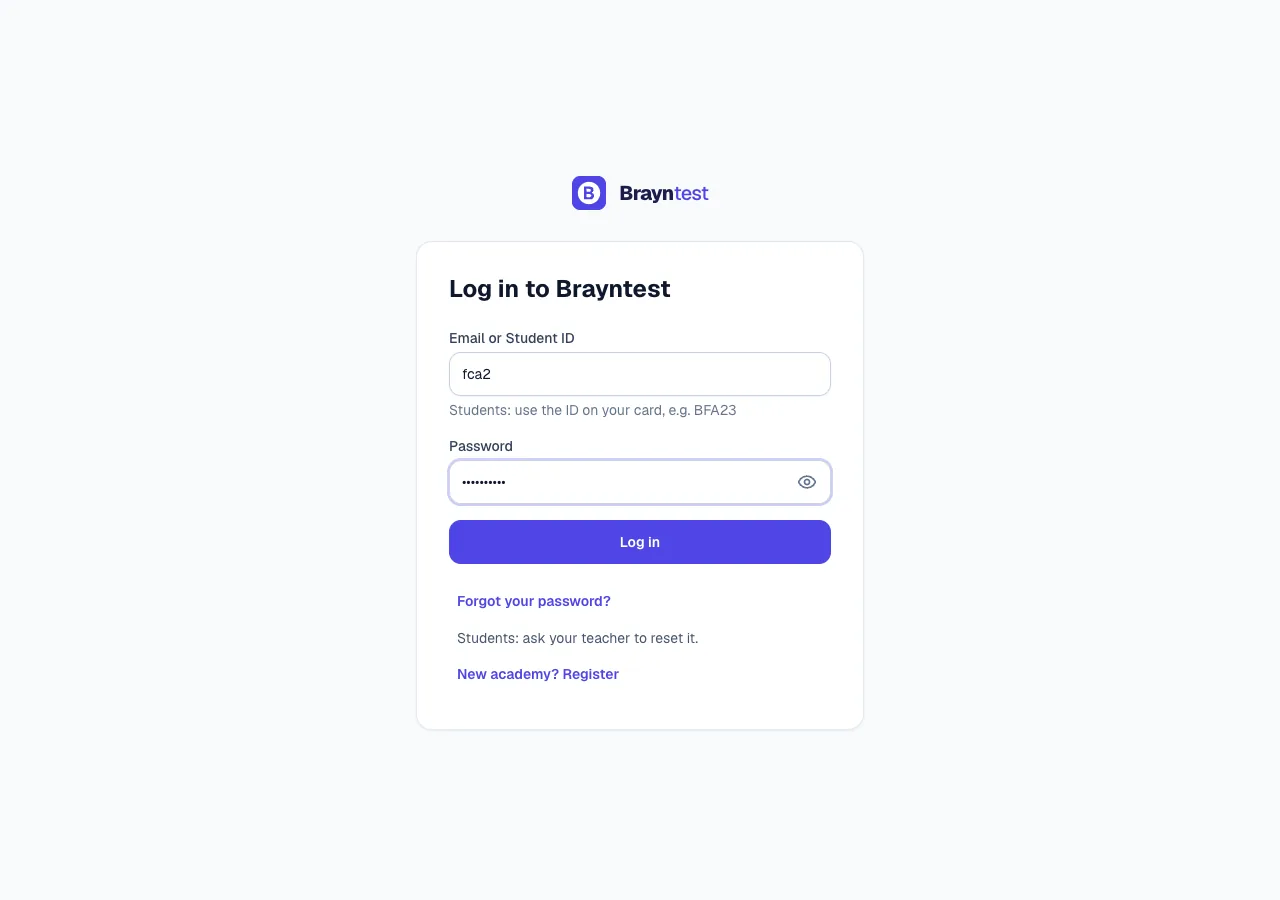
1. Sign in
Go to brayntest.com and tap Log in. Type your Student ID from your card (like BFA23; small or capital letters don't matter) and your password. Forgot it? Ask your teacher to reset it.
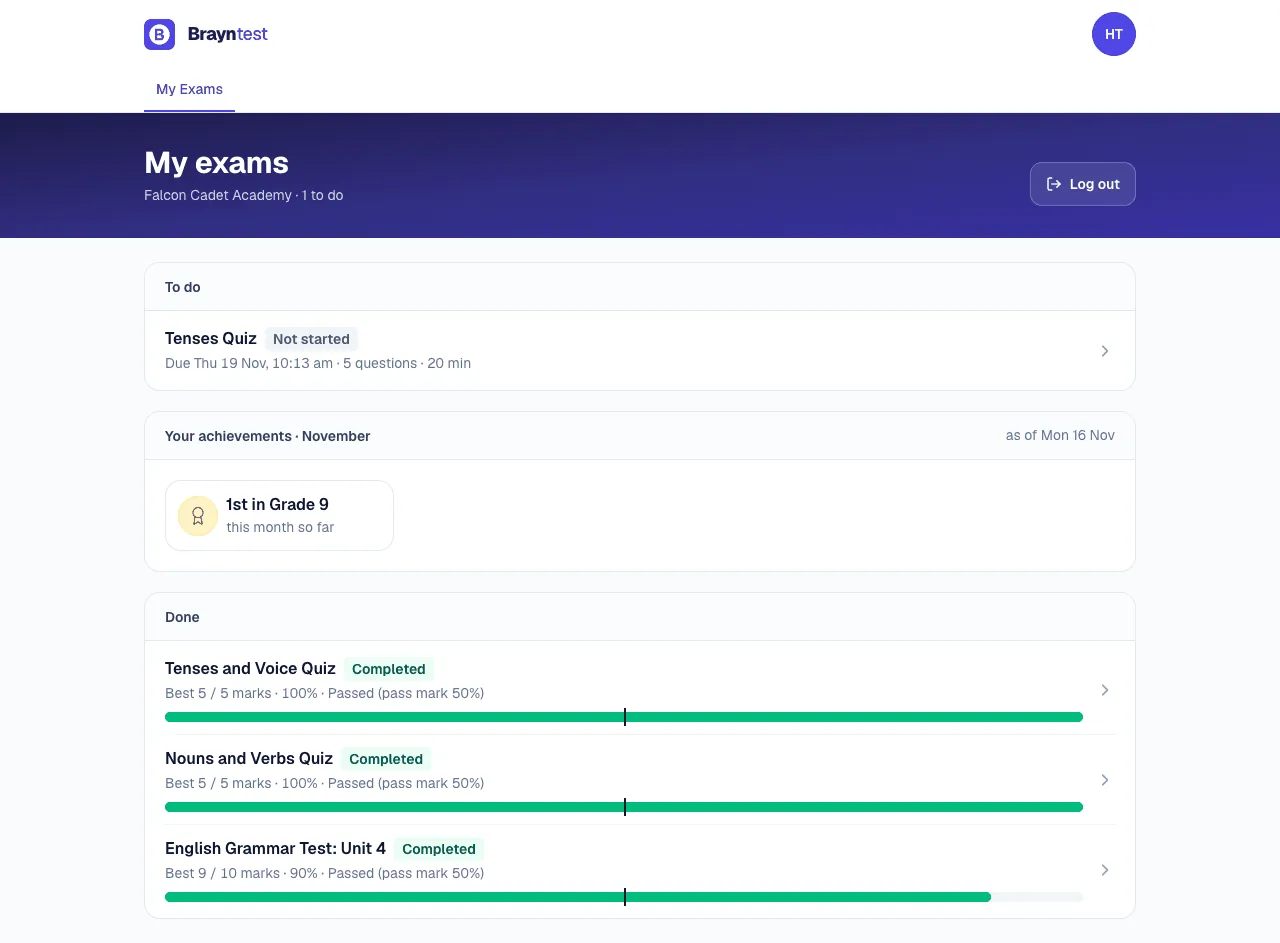
2. Your exams
My exams lists the tests you have to do, with their due dates, and the ones you've done.
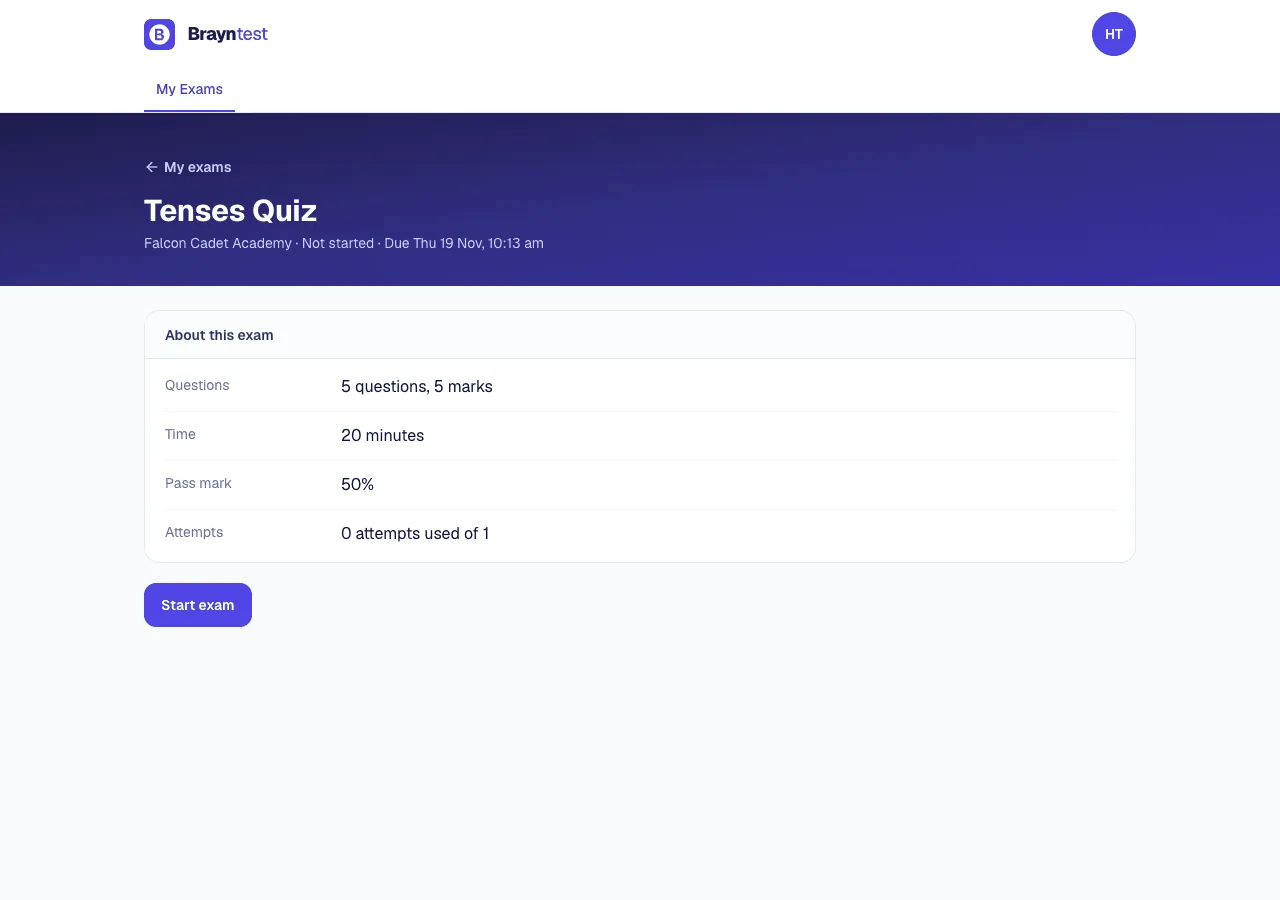
3. Start the test
Open a test to see how many questions it has and how long you have, then tap "Start exam". The timer starts then.
4. Answer the questions
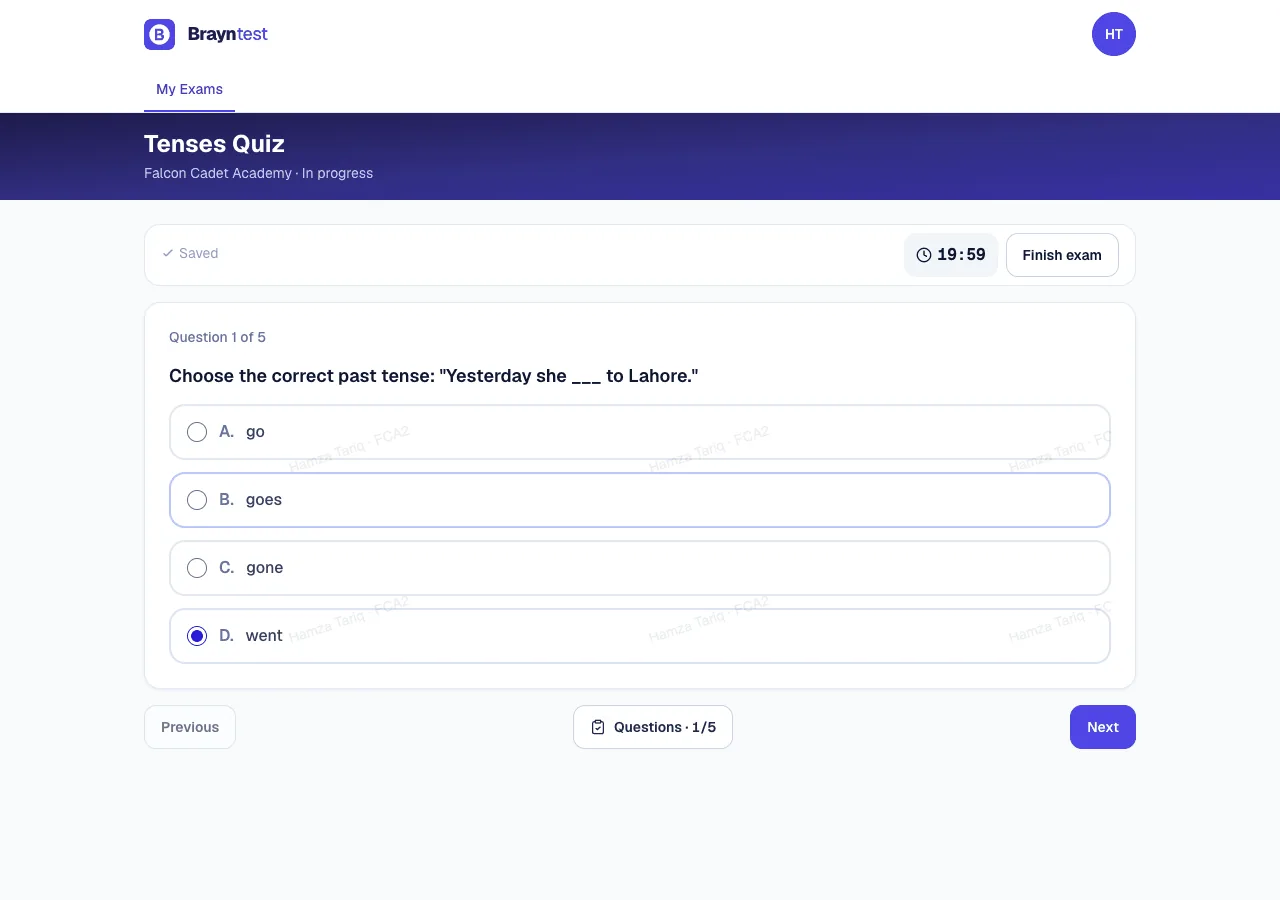
Tap an answer, then Next. The time left and Finish stay at the top; Questions shows which ones you've answered and takes you to any of them. Your answers are saved as you go, even if the internet drops for a moment. Tap Finish when you've finished -- it asks first, naming any question you haven't answered; when the time runs out, it's submitted for you.
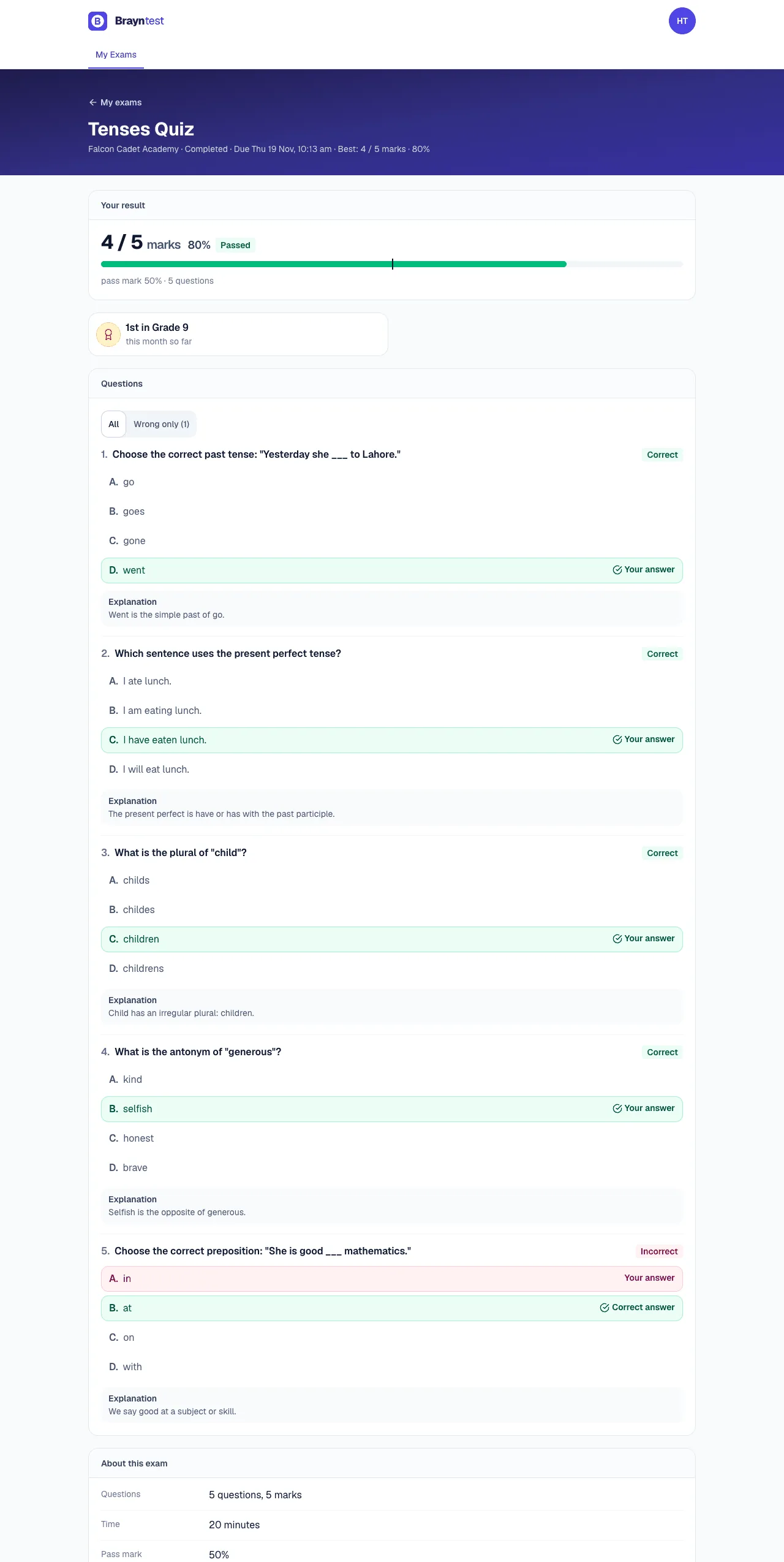
5. Your result
Your marks show as soon as you submit, with the percentage and Passed beside them (unless your teacher releases results later). On a shared phone, tap "Log out" on My exams before the next student signs in.