Send progress reports to parents
Add a parent's WhatsApp number, send each family its private link, print or download reports, and see what the family sees.
1. Your reports are made for you
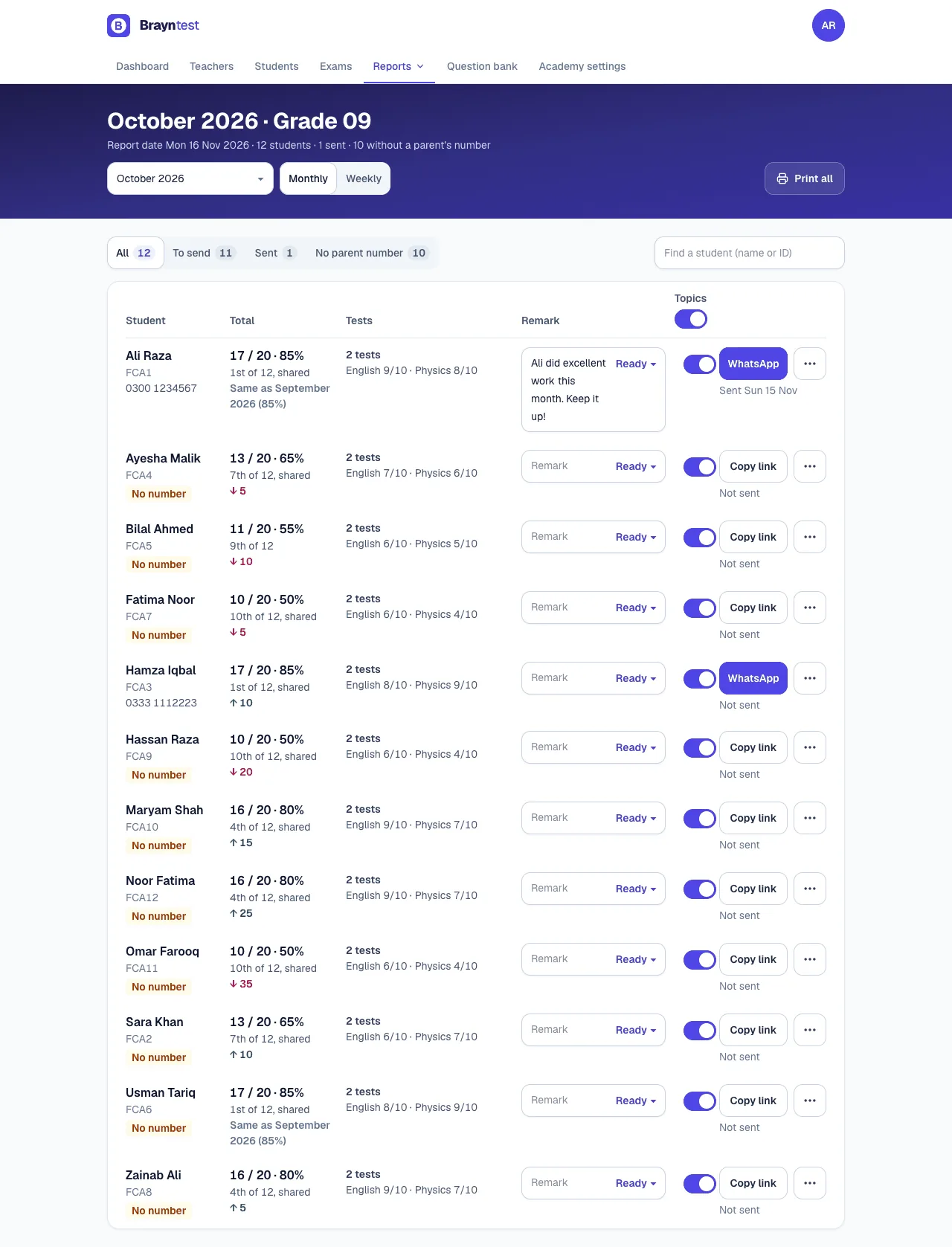
At the end of every month and every week, Brayntest makes a progress report for each student: every test with its marks, the total, the position in class, and the tests not taken (counted as 0). Open Reports › Parent reports. Choose Monthly or Weekly, and the class if you have more than one.
2. Add a parent's WhatsApp number
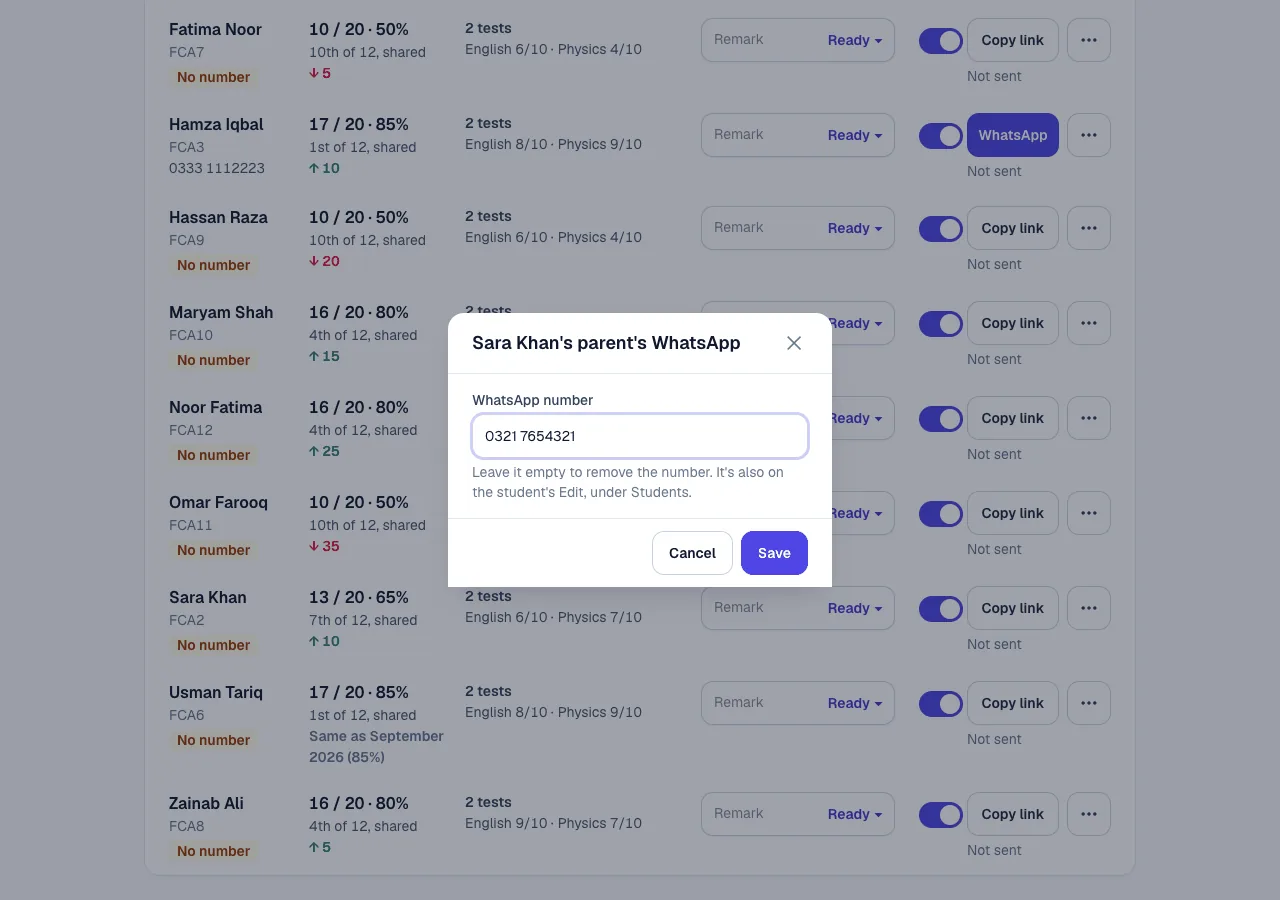
A row that says "No number" has no parent's number yet. Tap ⋯ on that row, then "Add number", type the number (like 0300 1234567) and tap Save. You can also add it in the student's Edit, under Students.
3. Add a remark (optional)
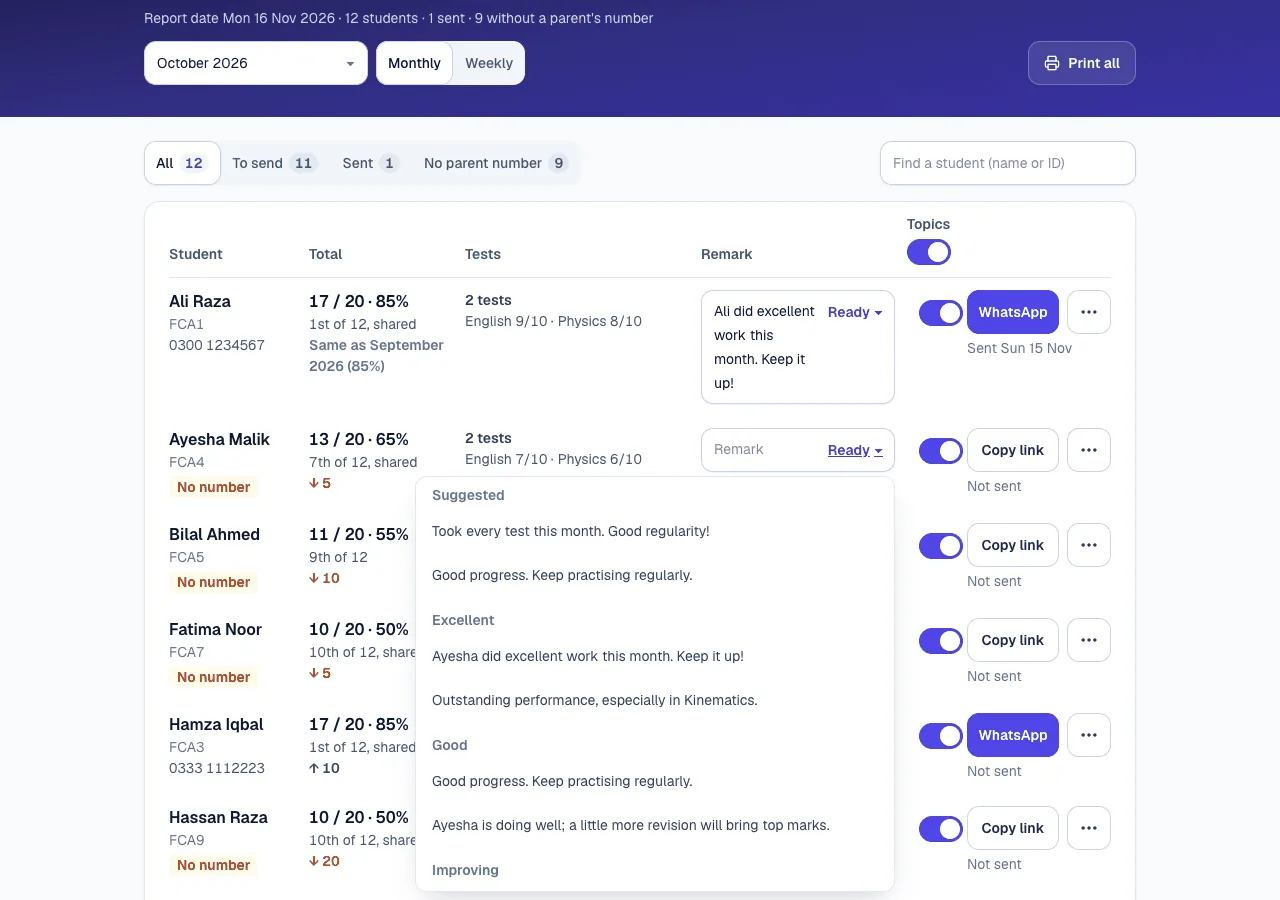
Type a few words for the family in the Remark box, or tap Ready and choose a ready remark. Your remark shows on the report the family opens. Turn Topics on to show their strong and weak topics too.
4. Send it on WhatsApp
Tap WhatsApp on the student's row. WhatsApp opens with a short message and the family's private link, ready to send. The row then says Sent. No number? Tap Copy link and send the link any way you like. A student added this month has no report yet: copy their link from Students (⋯ › Copy parent link) or from their detail in Class progress.
5. A PDF or a printout
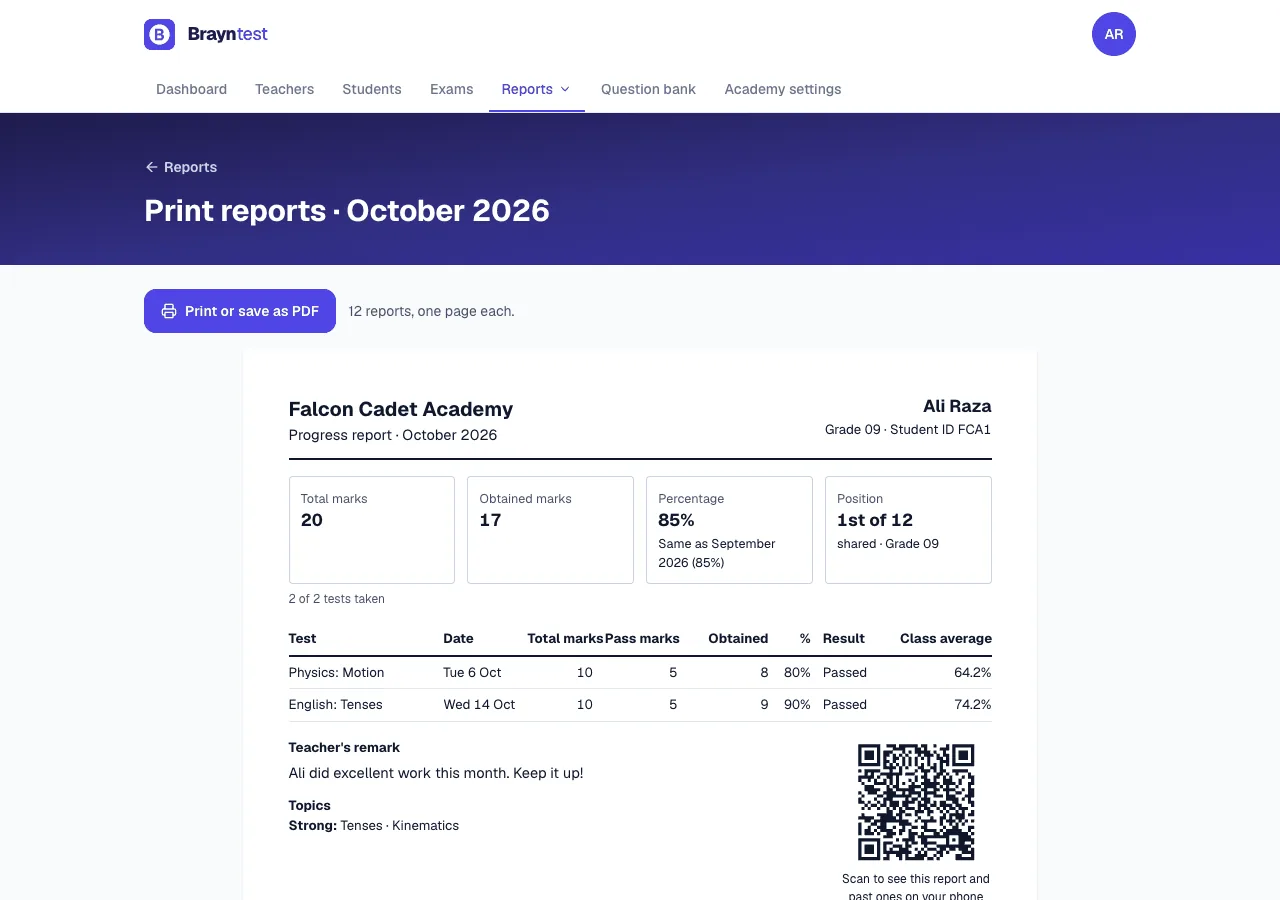
Tap ⋯, then "Download PDF" for one student's report as a file you can send. Or tap "Print all" at the top to print every report on paper, one page each, with a QR code the family can scan to open their link.
6. What the family sees
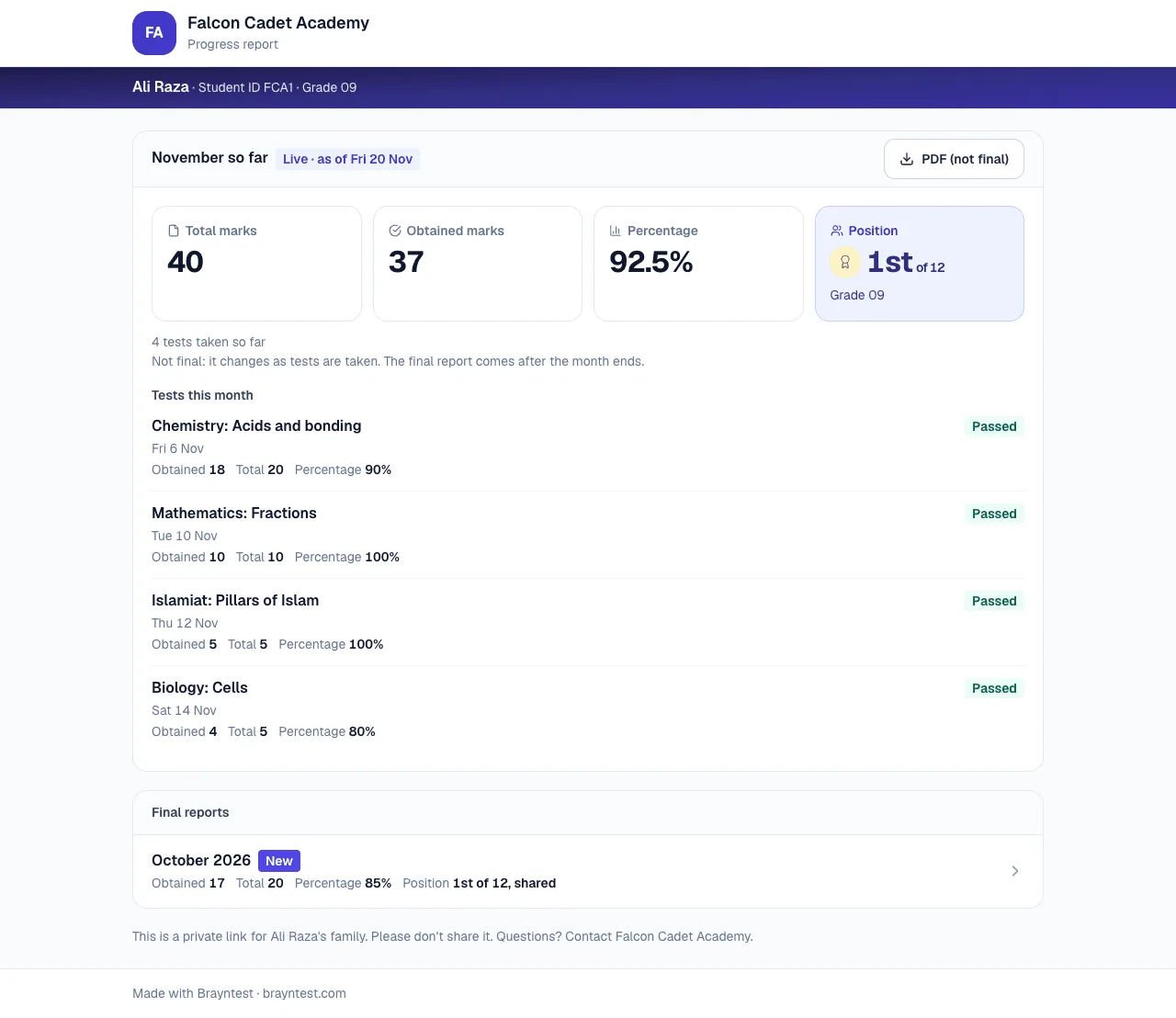
The link opens without an account. On top is this month so far, worked out live, in the same four boxes as a final report (Total marks, Obtained, Percentage and Position), then the tests still to take and the tests taken, each with its Obtained, Total and Percentage, and a PDF marked "not final". A test with no pass mark says "No pass mark"; one where you hid Passed / Not passed shows neither. Below are the final reports you've sent, newest first; the family taps one to open it. One link for each student, and it stays the same every month.