Import your own questions
Bring questions you already have from Excel or CSV: straight into an exam, or into your question bank for later.
The exam builder has two layouts. Simple starts with "What to make"; Classic with the exam's name, then Structure. Steps marked Simple or Classic are for that layout; the rest are the same in both.
1. Straight into an exam: choose A file
SimpleOn the Exams page, tap "New exam", choose the subject and the class or level, and give the exam a name. Open More options and, under "Questions from", choose "A file". Your file is read for this exam, so it's saved first: tap "Save and choose a file". The template, the upload and the check then appear on the same page, where the topics were (the next steps).
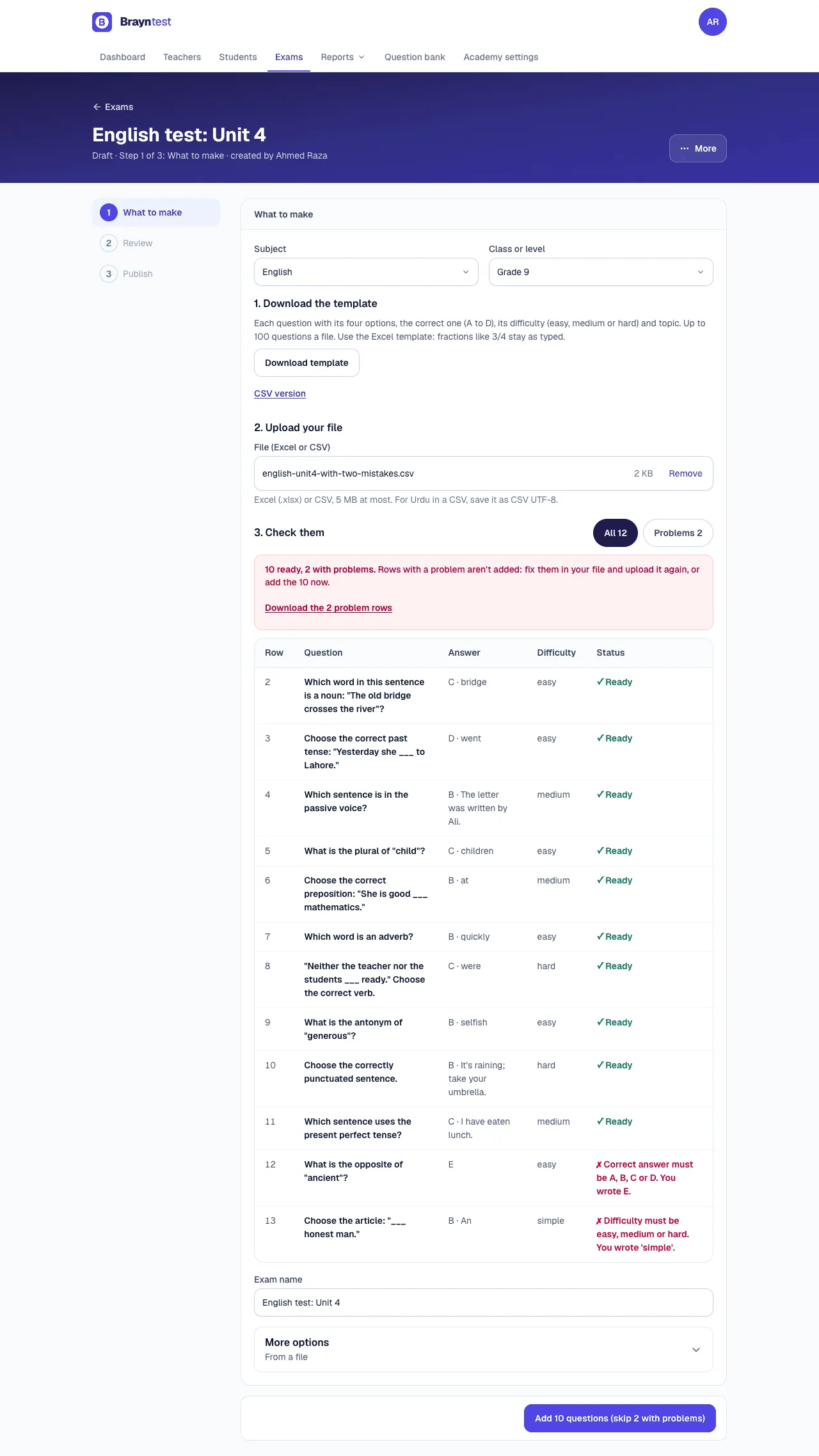
2. Straight into an exam: choose Import from a file
ClassicOn the Exams page, tap "New exam", give it a name, and in Structure choose the class or level, then "Import from a file", and the subject. With several parts, each part gets its own file.
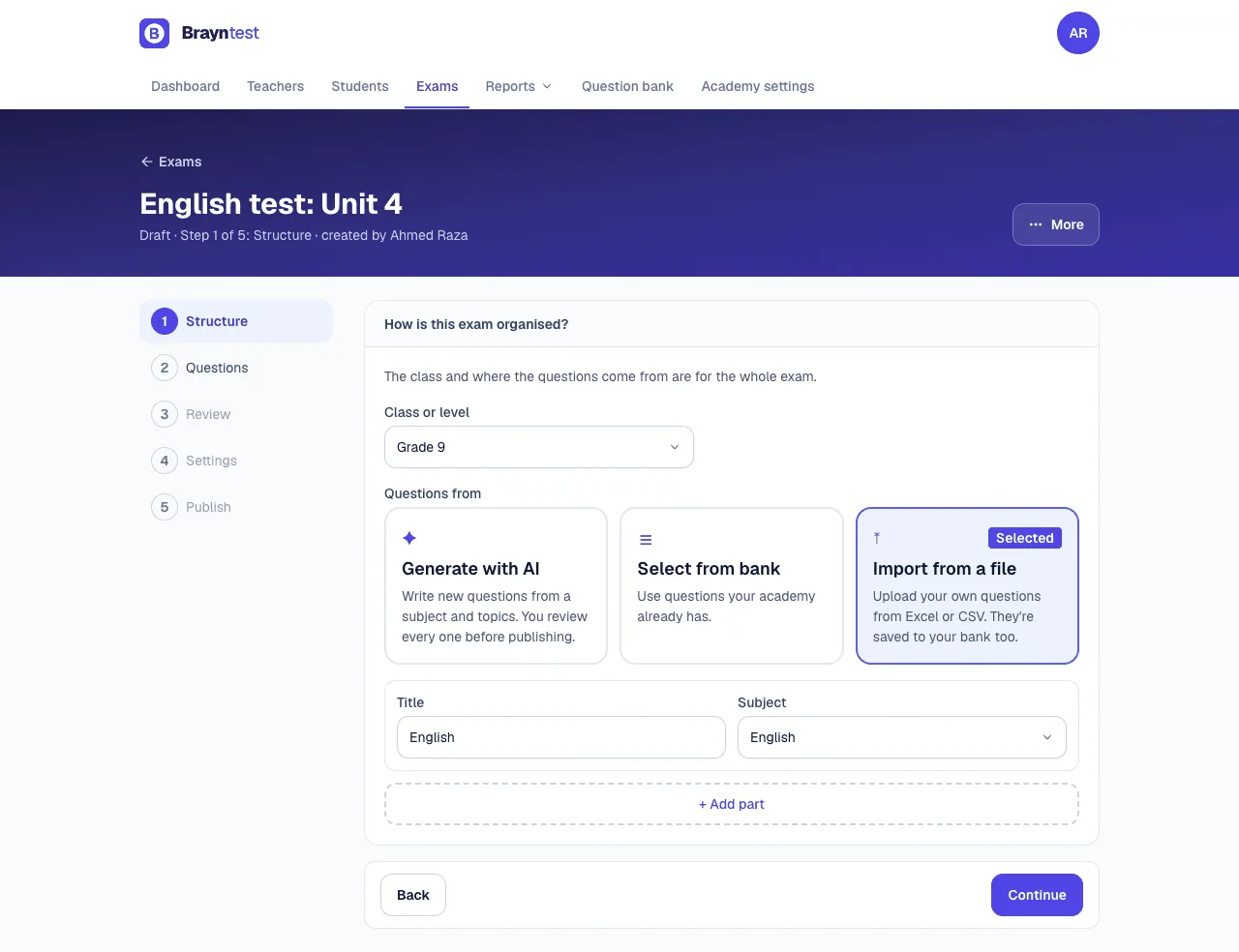
3. Download the template and fill it in
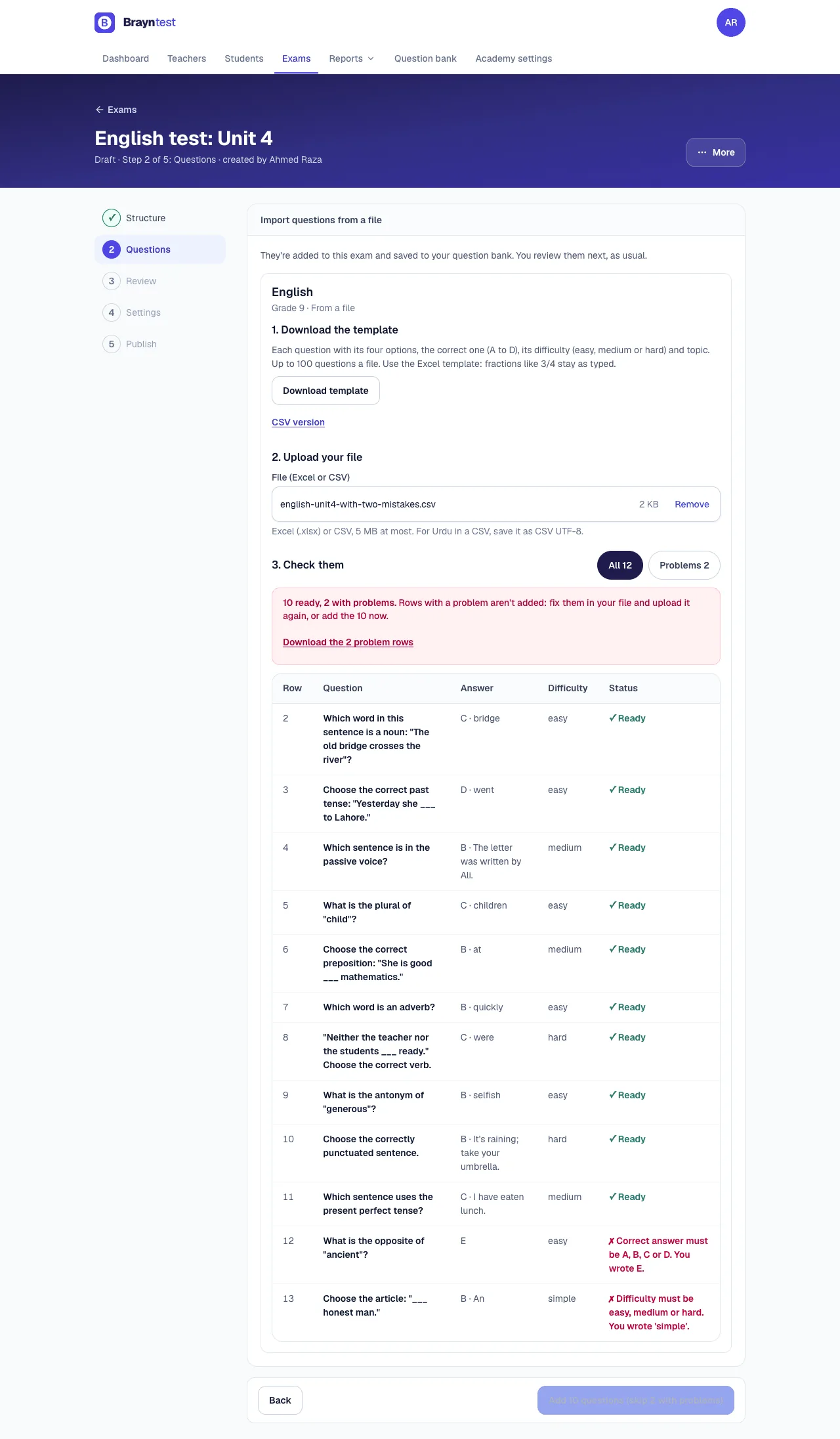
Tap "Download template" (Excel; there's a CSV version under it) and fill it in, one question a row, up to 100 in a file: the question; its four options; the correct one, A, B, C or D; an explanation if you like; the difficulty, easy, medium or hard; and a topic. No class or subject: the part's are used. Example row: "What is the plural of child?", childs, childes, children, childrens, C, "Child has an irregular plural", easy, Nouns. Fill in the Excel template rather than a new sheet: its columns are set to Text, so fractions like 3/4, 1/2 and 5-2 stay as you type them. Elsewhere Excel turns them into dates: a value that looks like a date is marked ⚠ and added as shown, which is right for a real date like 14-Aug (Independence Day) and wrong for a fraction, so check those. Urdu works in the Excel file; for a CSV, choose "CSV UTF-8" when you save it, or Excel loses the Urdu letters.
4. Upload it and check the questions
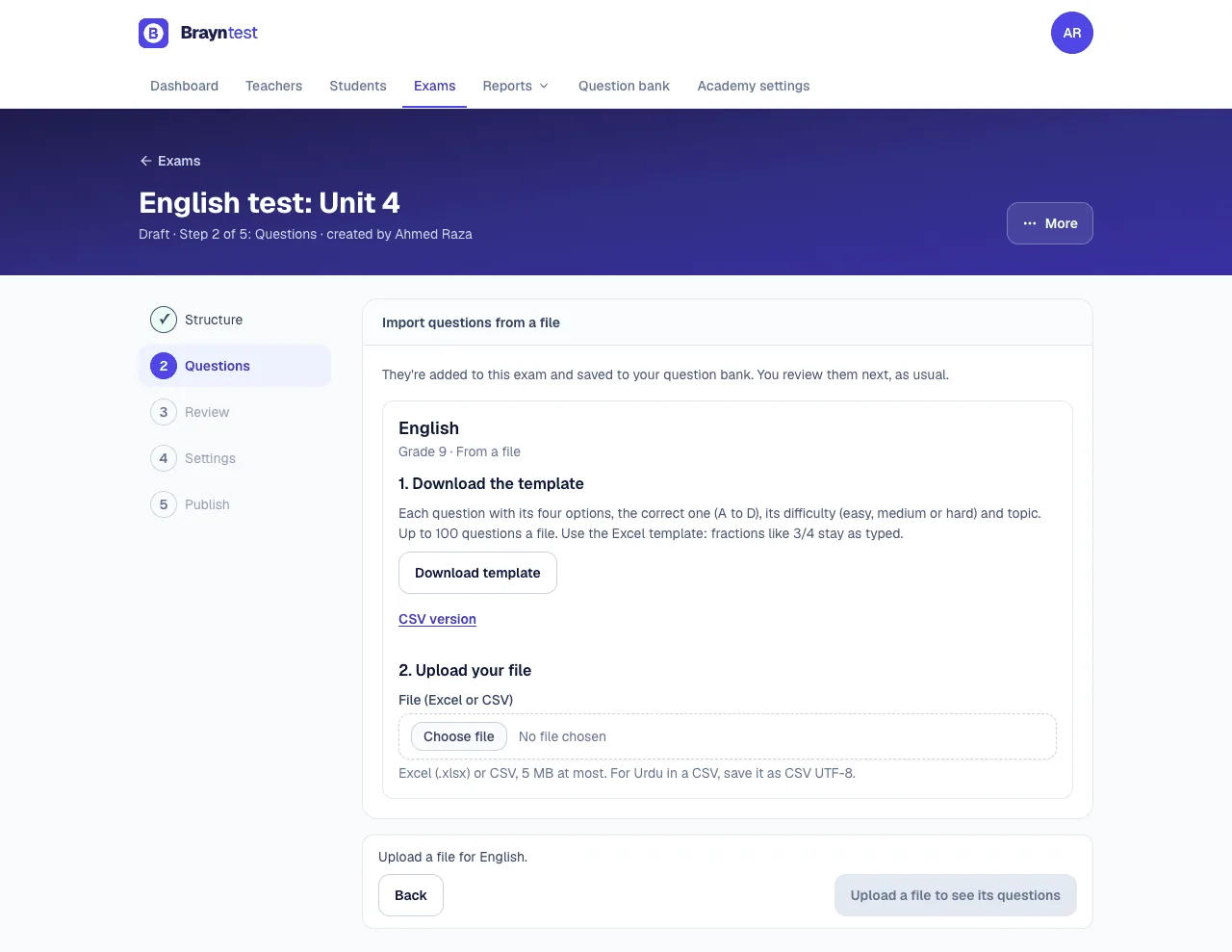
Upload the file. Every row is checked and shown, ready or with its problem in plain words, for example "Correct answer must be A, B, C or D. You wrote E." or "Difficulty must be easy, medium or hard. You wrote 'simple'." "Problems" shows just those, and "Download the problem rows" gives you a file of only them, with the problem beside each: fix it and upload it again.
5. Add the ready ones
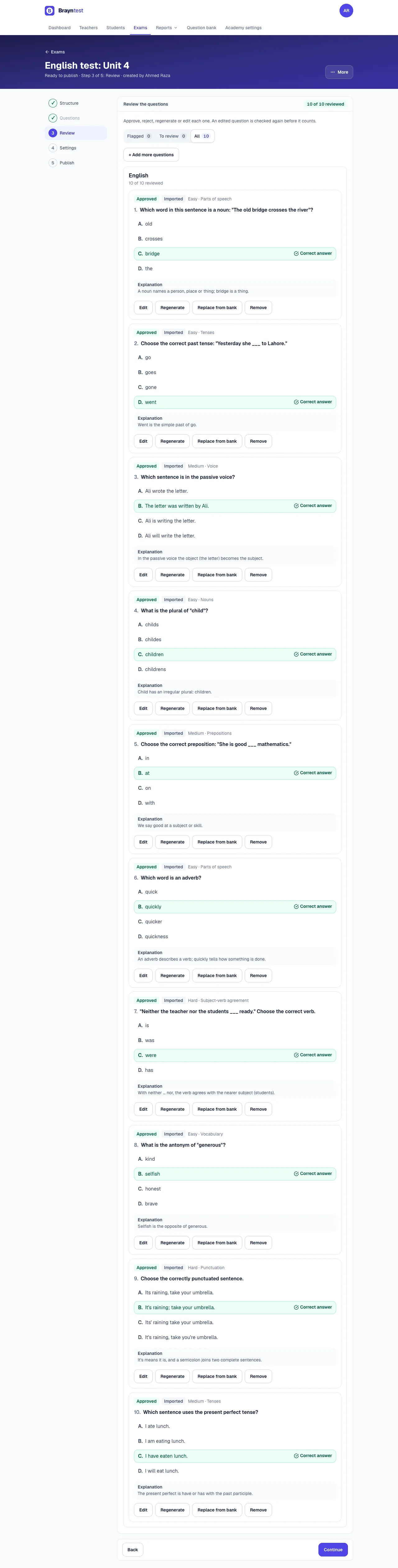
Tap "Add 10 questions (skip 2 with problems)". They go into the exam, and into your question bank too, ready for the next exam. In Review they're marked "Imported"; you can still edit or remove any of them. To add more later, in Review tap "+ Add more questions" (on Simple, More › Add more questions), choose the part and "From a file".
6. Or into your question bank
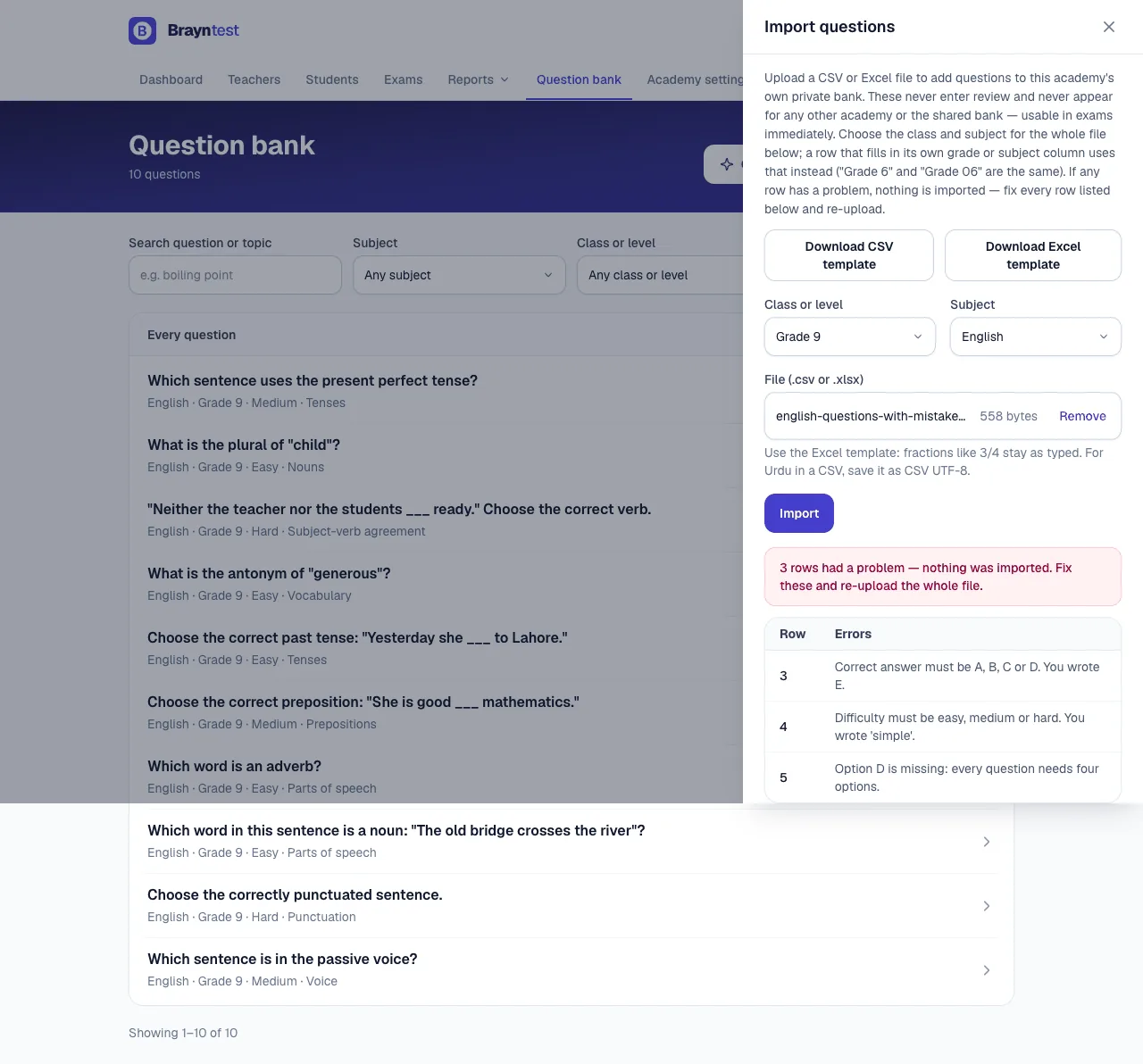
To keep questions for later, go to Question bank › Import questions. Choose the class and subject for the whole file, download the template, and upload it; a row can name a different class or subject in its own columns (capitals, spaces and leading zeros don't matter: Grade 6 = Grade 06 = Class 6). Here it's all or nothing: if any row has a problem, nothing is imported and every problem is listed.