Generate questions from your own book pages
Attach a photo or a PDF of the pages you teach, and the AI writes its questions from them.
The exam builder has two layouts. Simple starts with "What to make"; Classic with the exam's name, then Structure. Steps marked Simple or Classic are for that layout; the rest are the same in both.
1. Attach your pages
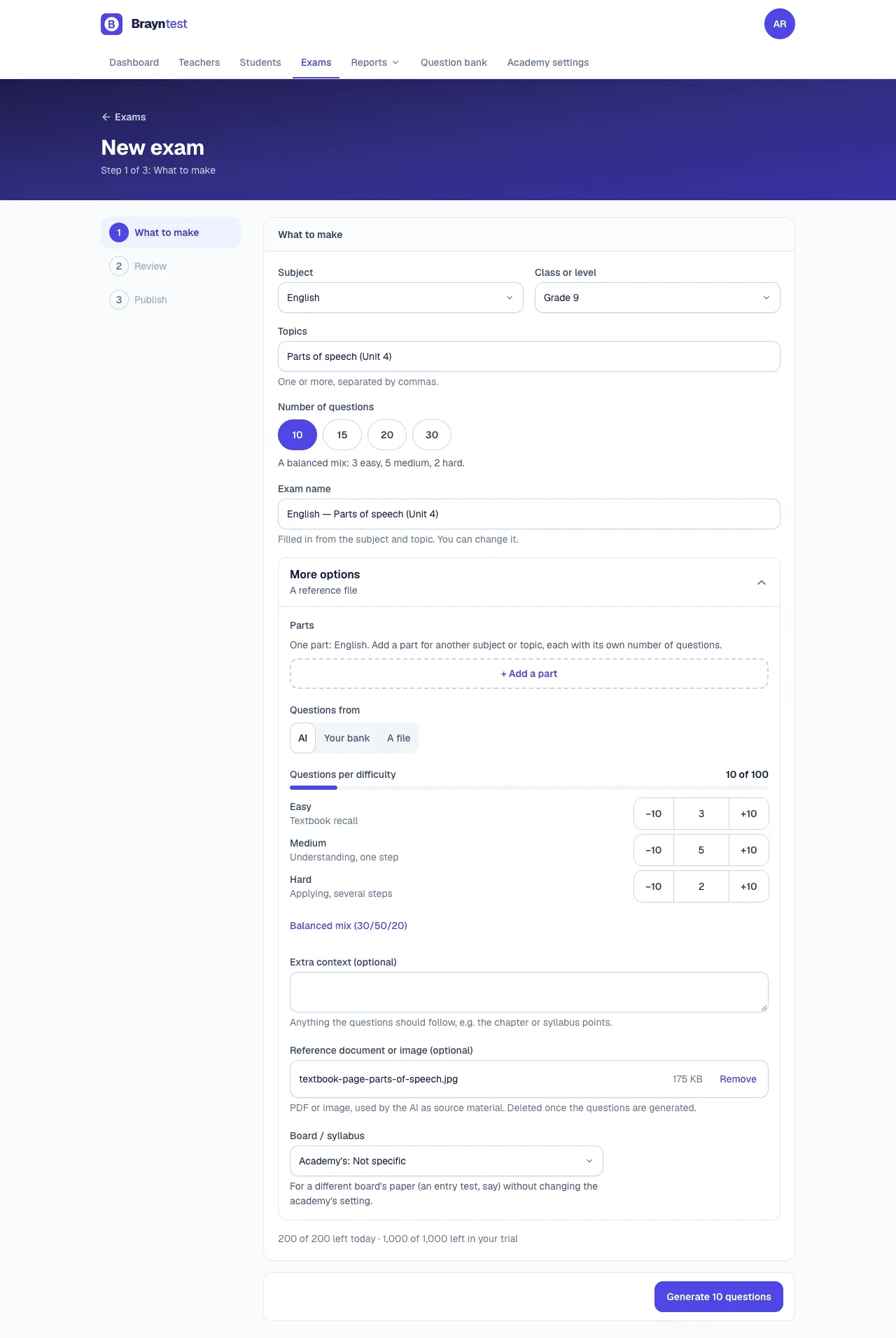
SimpleOn the Exams page, tap "New exam". Choose the subject and the class or level, type a topic or two so the AI knows what to focus on, and choose how many questions. Open More options and, under "Reference document or image (optional)", attach a photo of the pages (JPG, PNG or WebP, up to 10 MB) or a PDF (up to 10 pages, 8 MB).
2. Start the exam
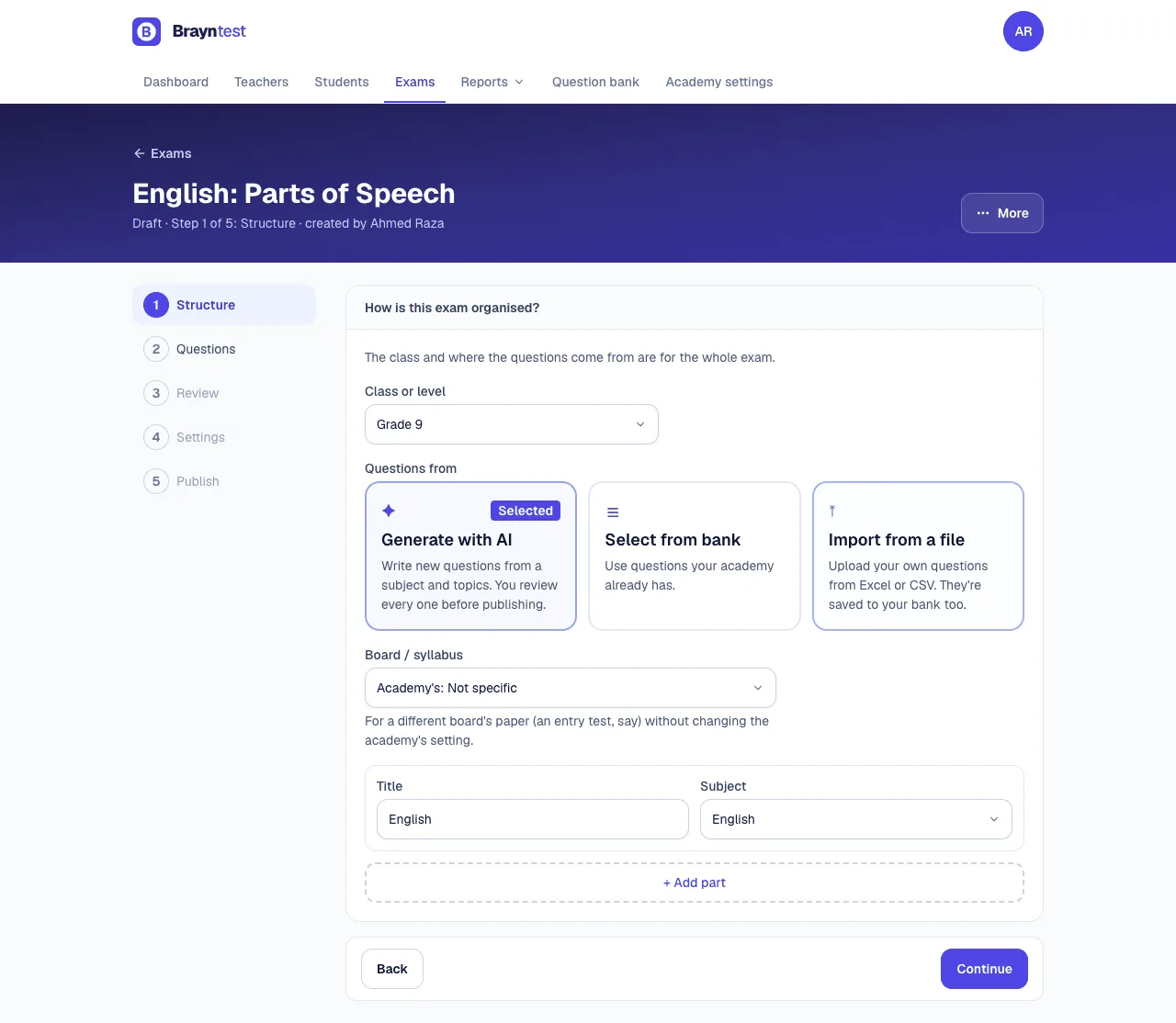
ClassicOn the Exams page, tap "New exam", give it a name and tap Continue. Choose the class or level, then "Generate with AI", and the subject. An exam can have several parts (one per subject, for example).
3. Attach your pages
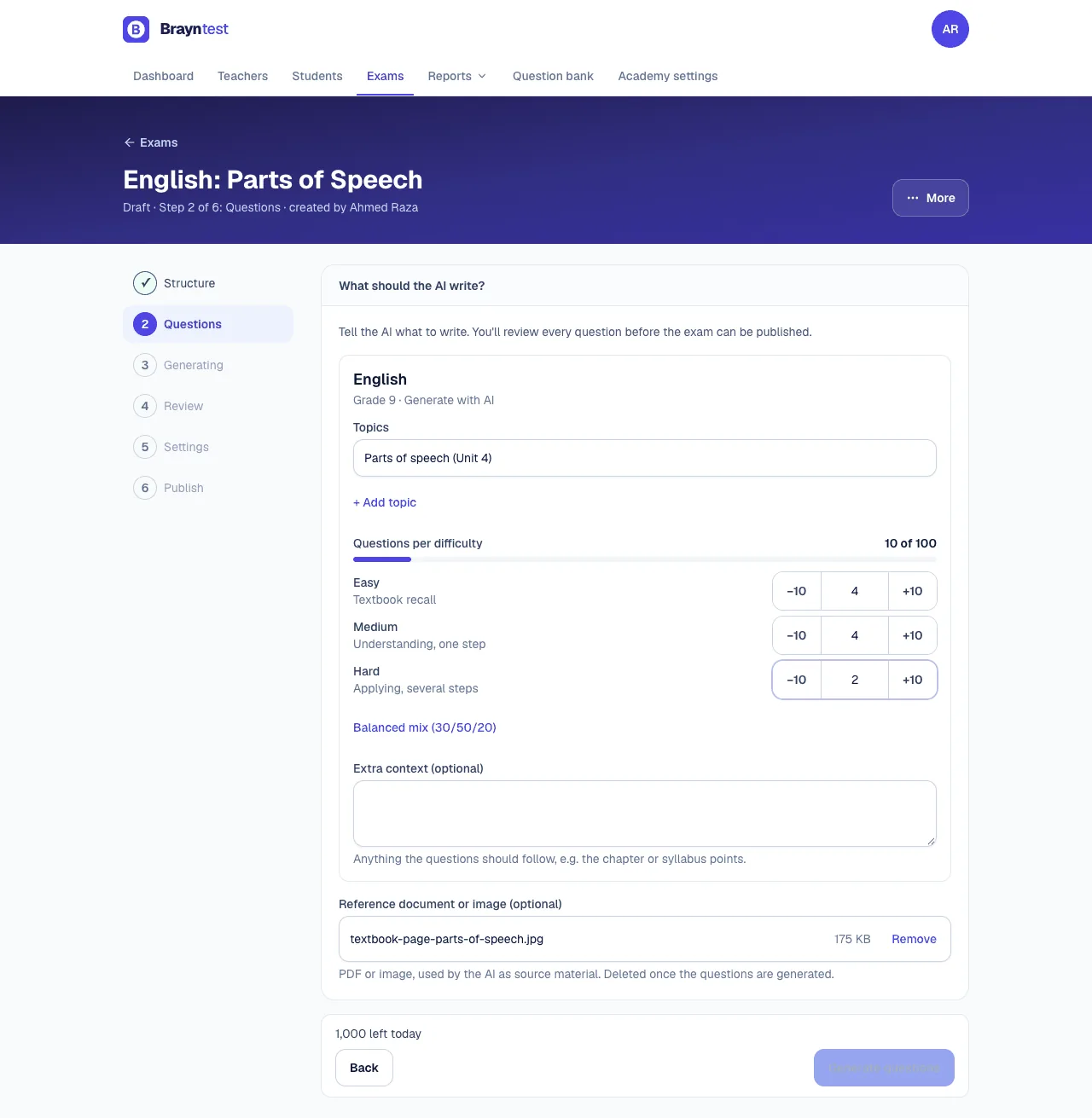
ClassicOn Questions, under "Reference document or image (optional)", attach a photo of the pages (JPG, PNG or WebP, up to 10 MB) or a PDF (up to 10 pages, 8 MB). Type a topic or two as well, so the AI knows what to focus on, and how many easy, medium and hard questions you want. Up to 100 questions per part.
4. Tips for good questions
Take the photo in good light, straight on, with the whole page in view; one chapter or a few pages at a time works better than a whole book. If the questions are about the wrong part of the page, name it in the topics ("Exercise 4.1", "adverbs").
5. Wait while they're written
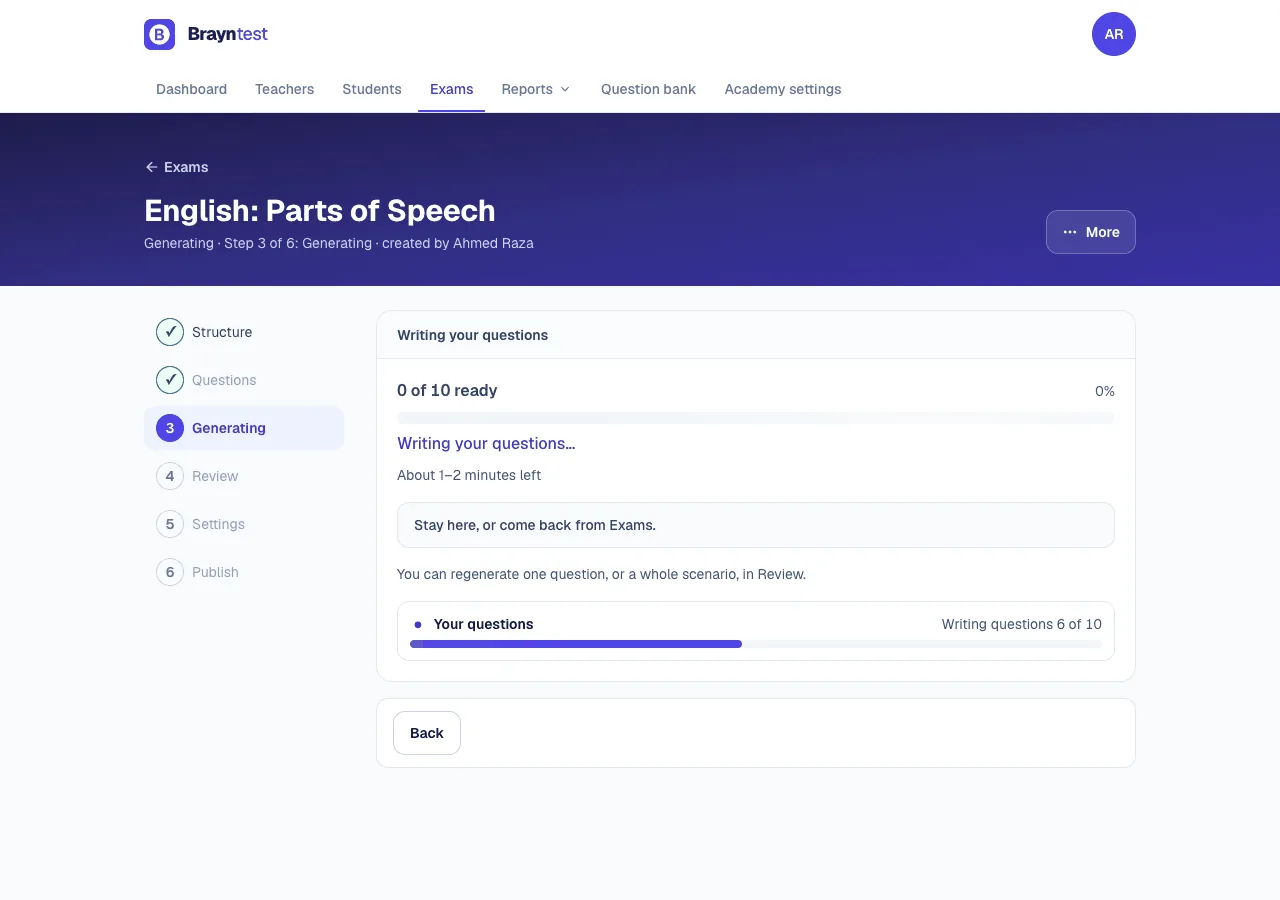
Tap Generate ("Generate 10 questions" on Simple, "Generate questions" on Classic). The AI writes them and then checks each one; the bar shows how far it has got and about how long is left (on Simple, at the top of Review). It usually takes a few minutes, and you can close the page and come back: the exam waits under Exams.
6. Review them
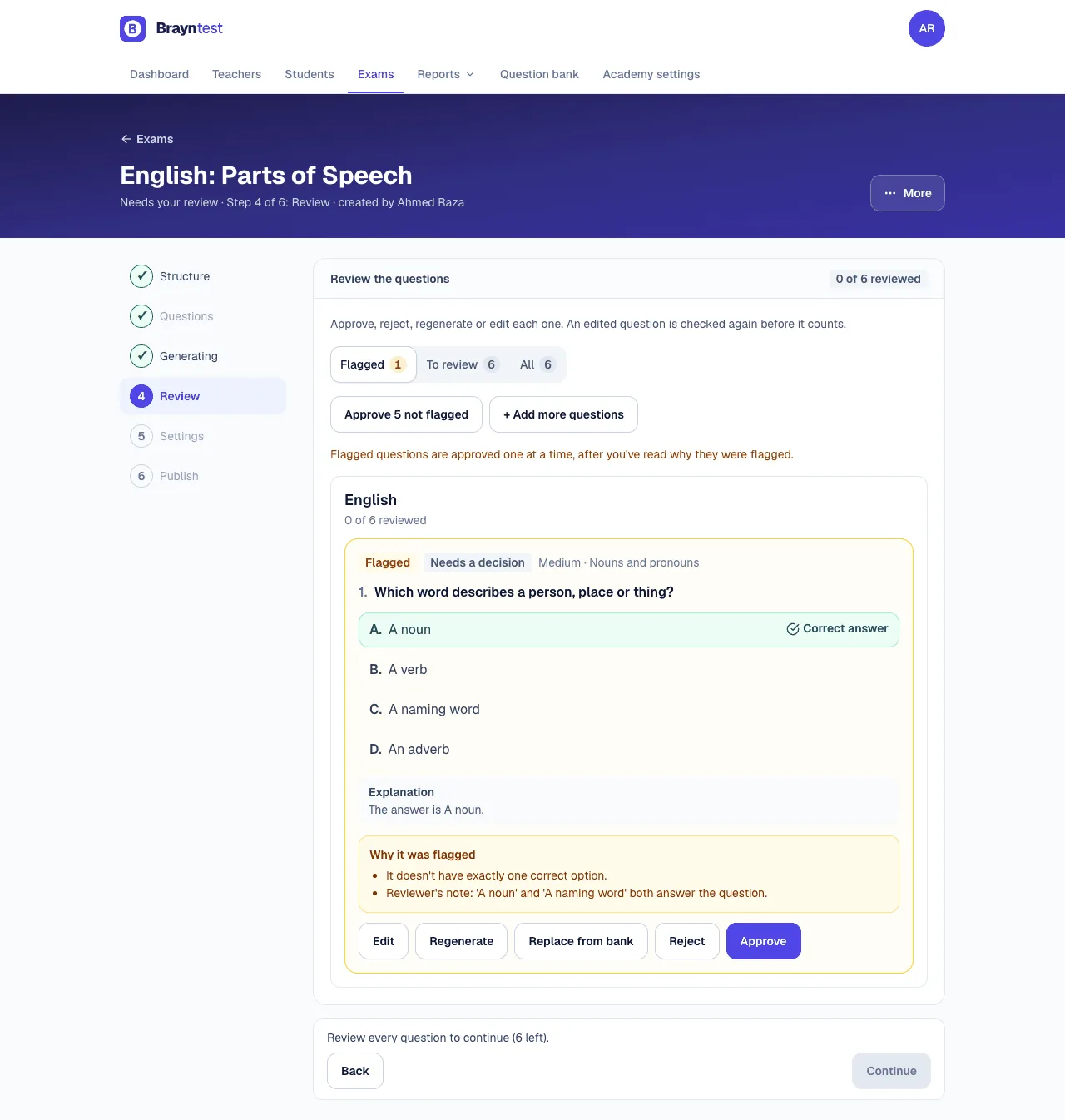
Every question comes from your pages. Read each one before you publish: see "Review, edit and publish an exam".