Creating your academy
Register your academy (or log in with the account you were given), and invite your first teacher.
1. Register your academy
New to Brayntest? Choose "Register your academy" on brayntest.com and fill in the short form: your name, the academy's name, your WhatsApp number, email and a password. Your academy opens at once, with a 14-day free trial, and you're signed in: skip to "You're set up" below. Open the link in the email we send to confirm your email; until then your academy can make … AI questions. If Brayntest's team gave you an account instead, start with the next step.
2. Log in
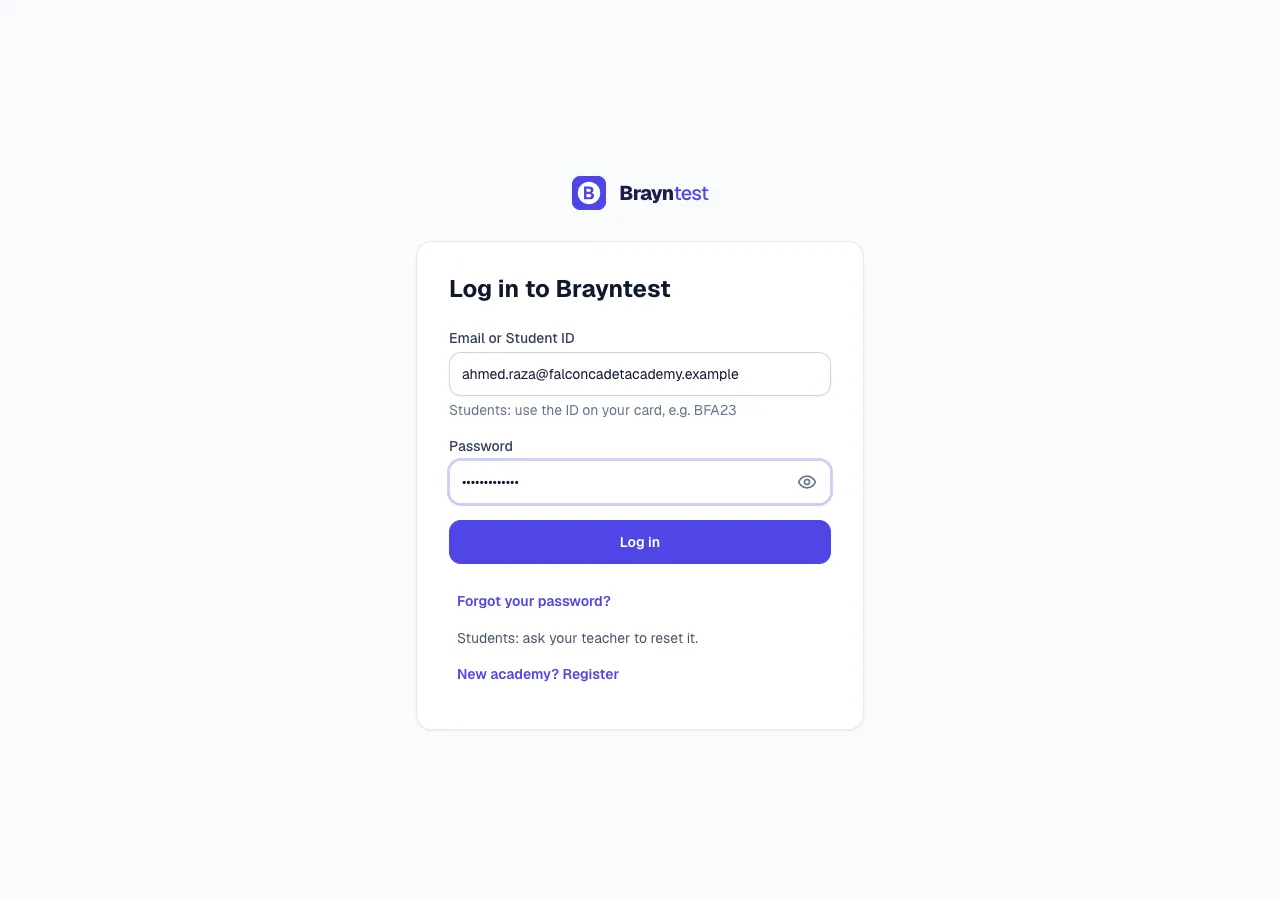
Sign in at brayntest.com/login with your email and the password you chose (or were given).
3. Create your academy
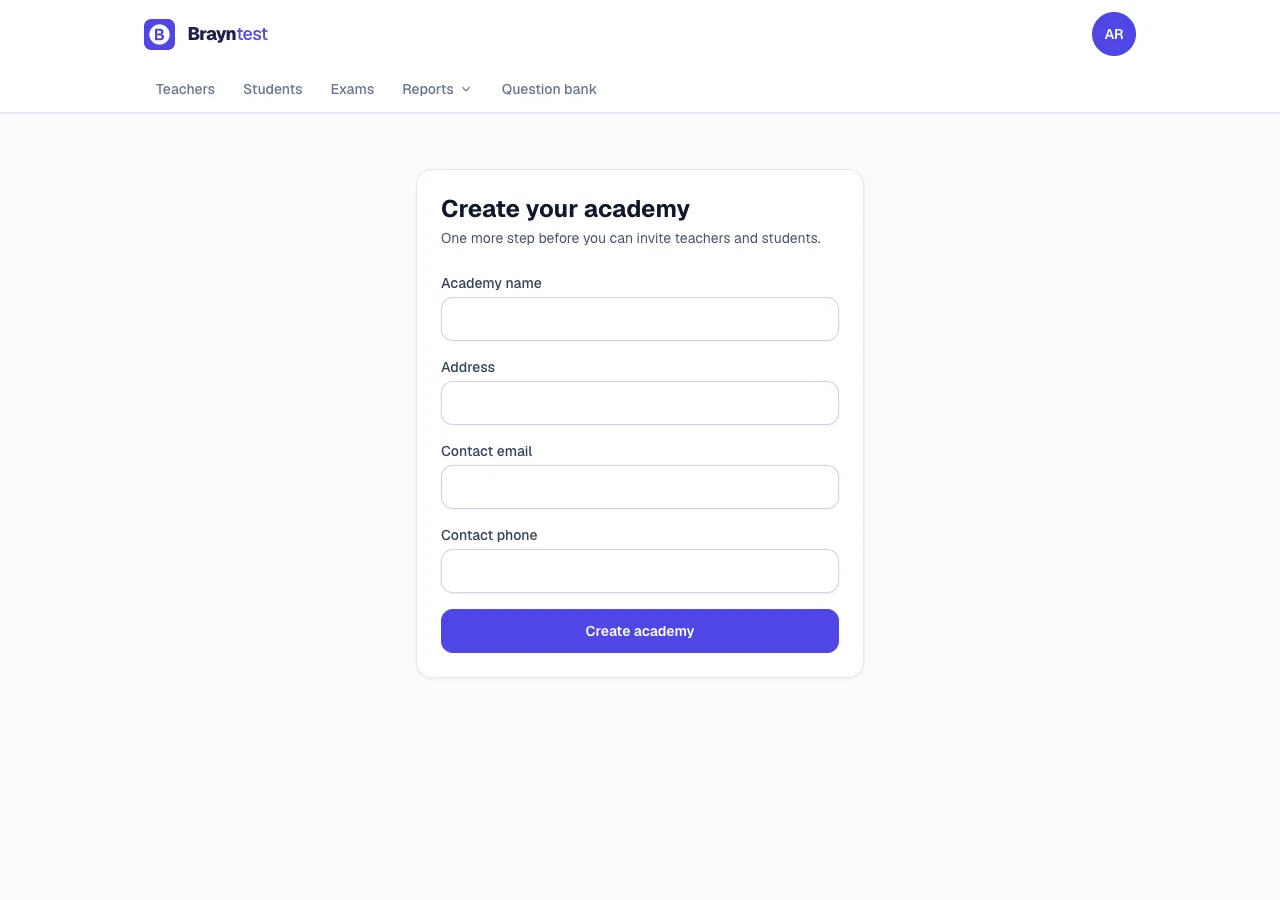
If Brayntest's team set up your account, the first time you log in you'll land on a short form. This is the only setup step before you can invite teachers and students.
4. Fill in your academy's details
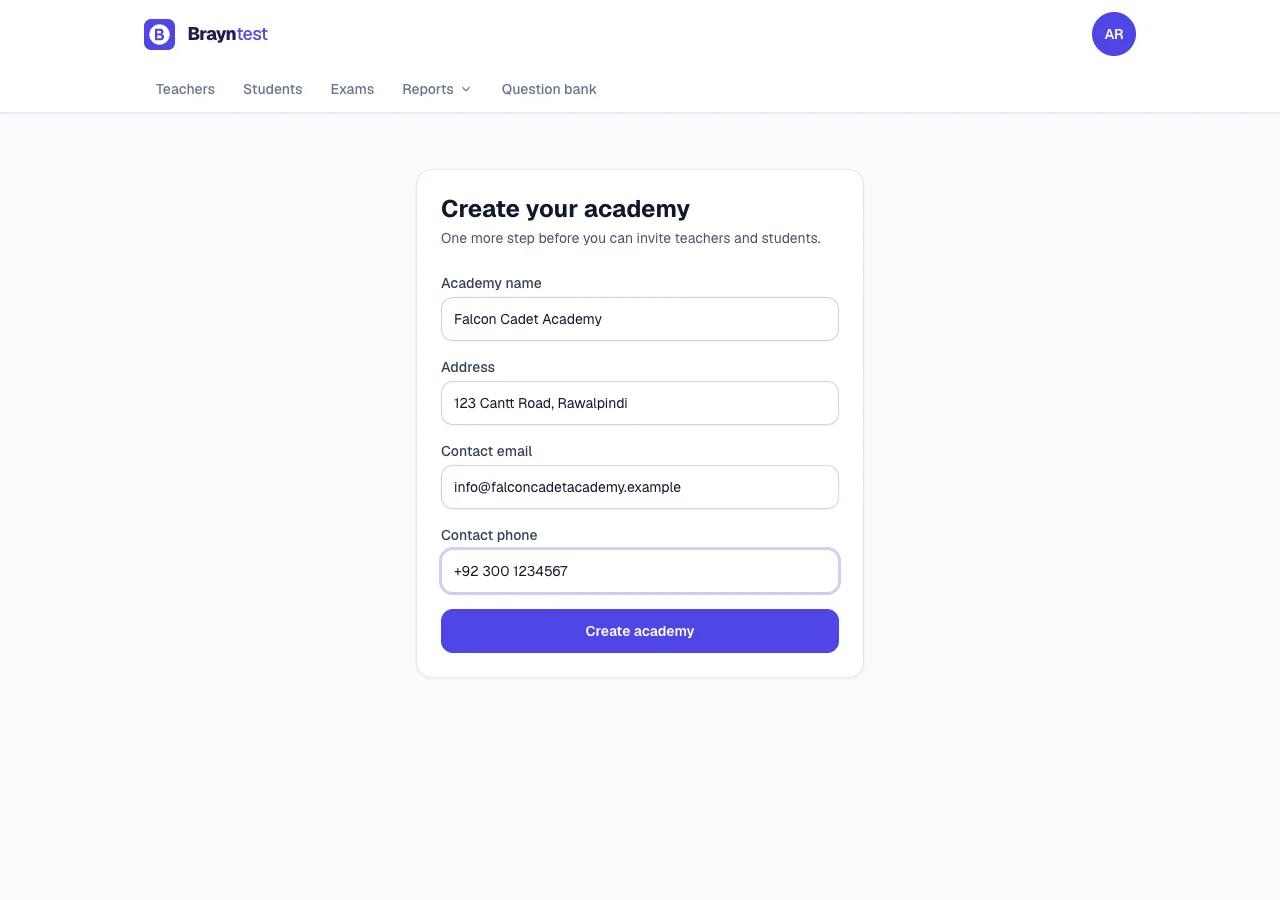
Only the academy name is required — address, contact email, and contact phone are optional, but worth filling in if you have them.
5. You're set up
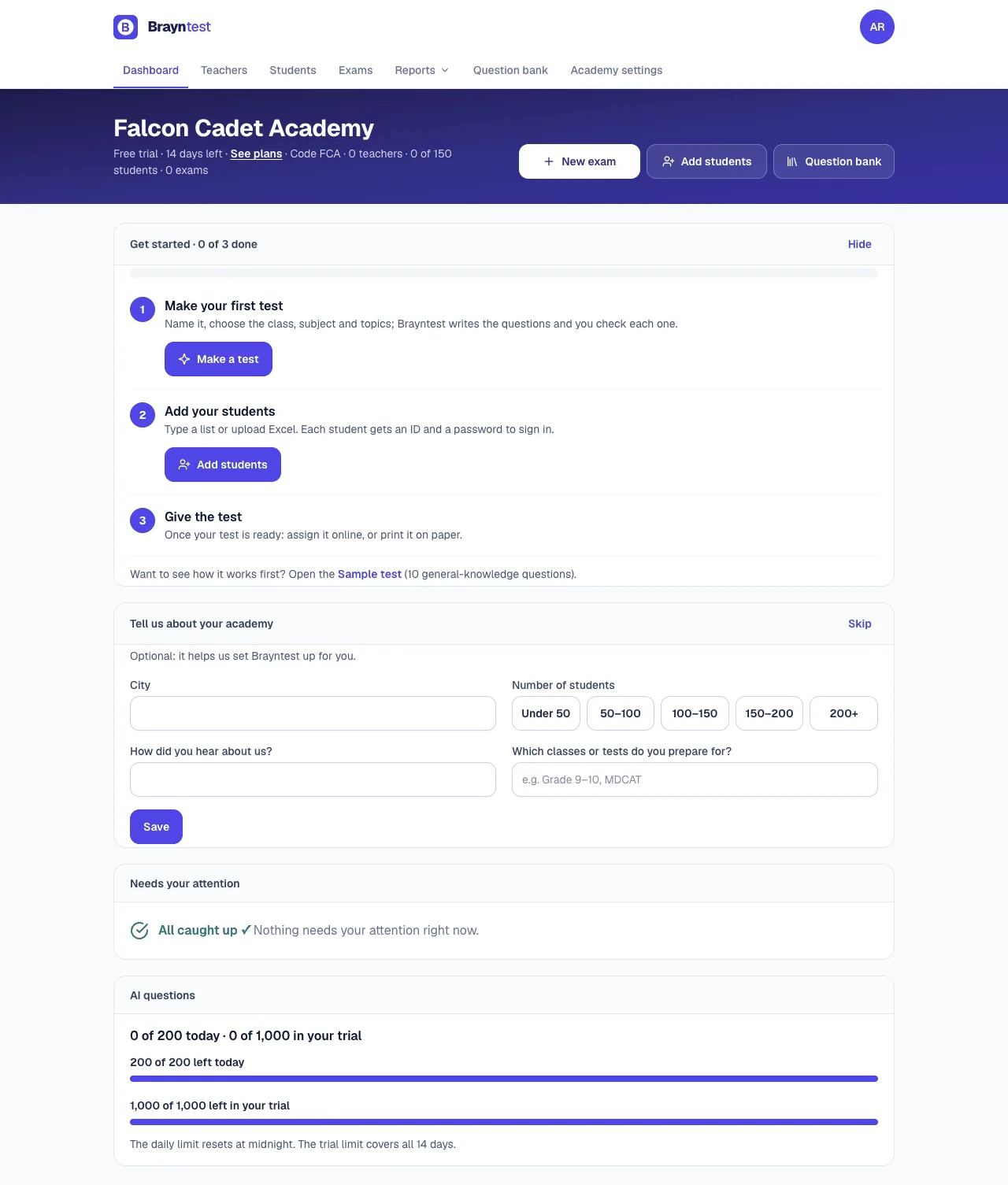
Once you submit, you land on your academy's dashboard — your home base from here on. At first it shows a short checklist: make your first test, add your students, and give the test (online or on paper); a ready-made sample test is there to try. Later it shows what needs your attention, exams in progress, recent results, weak topics and students who need help. Your academy's logo and currency are under Academy settings in the menu, and so is the exam builder: Simple or Classic.
6. Invite your first teacher
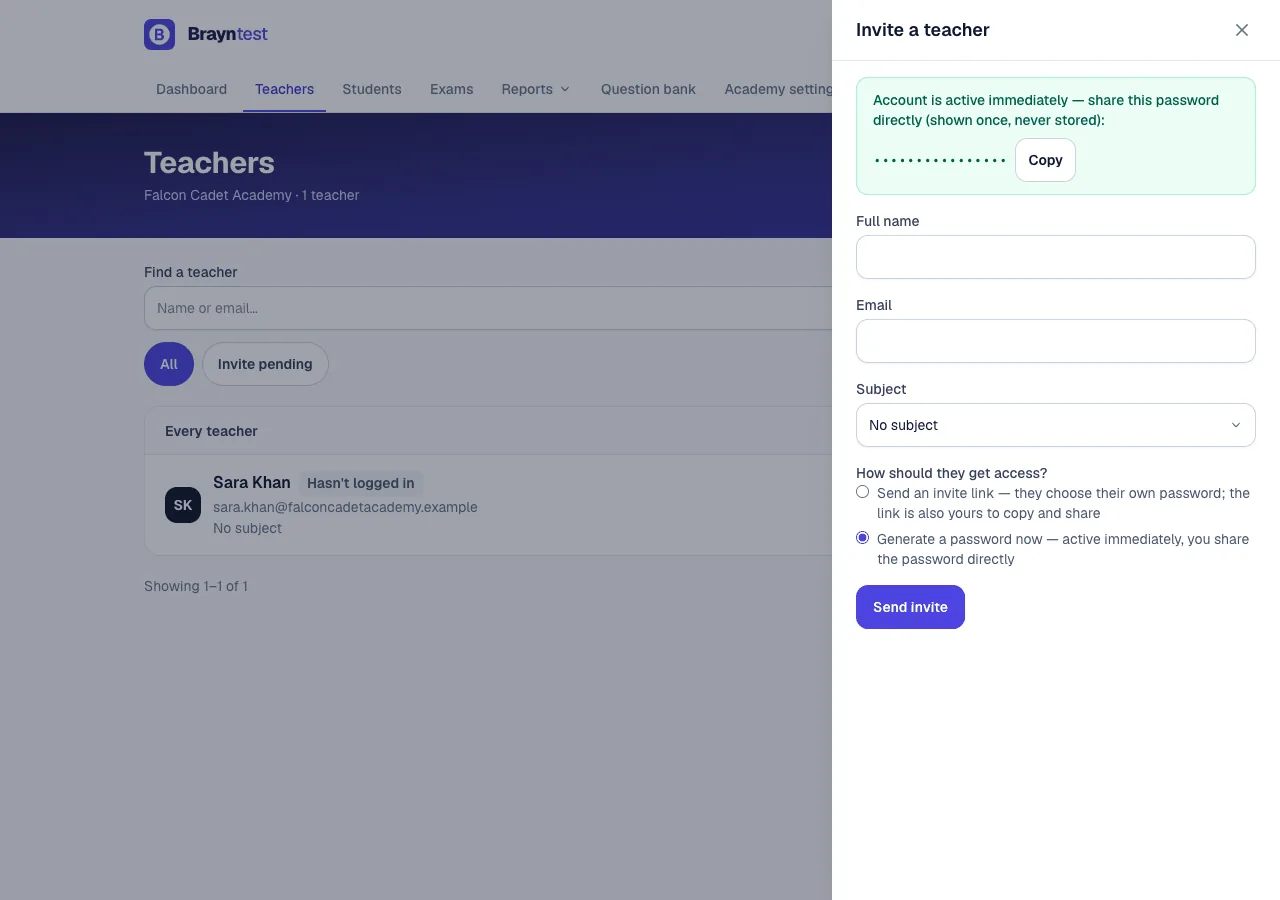
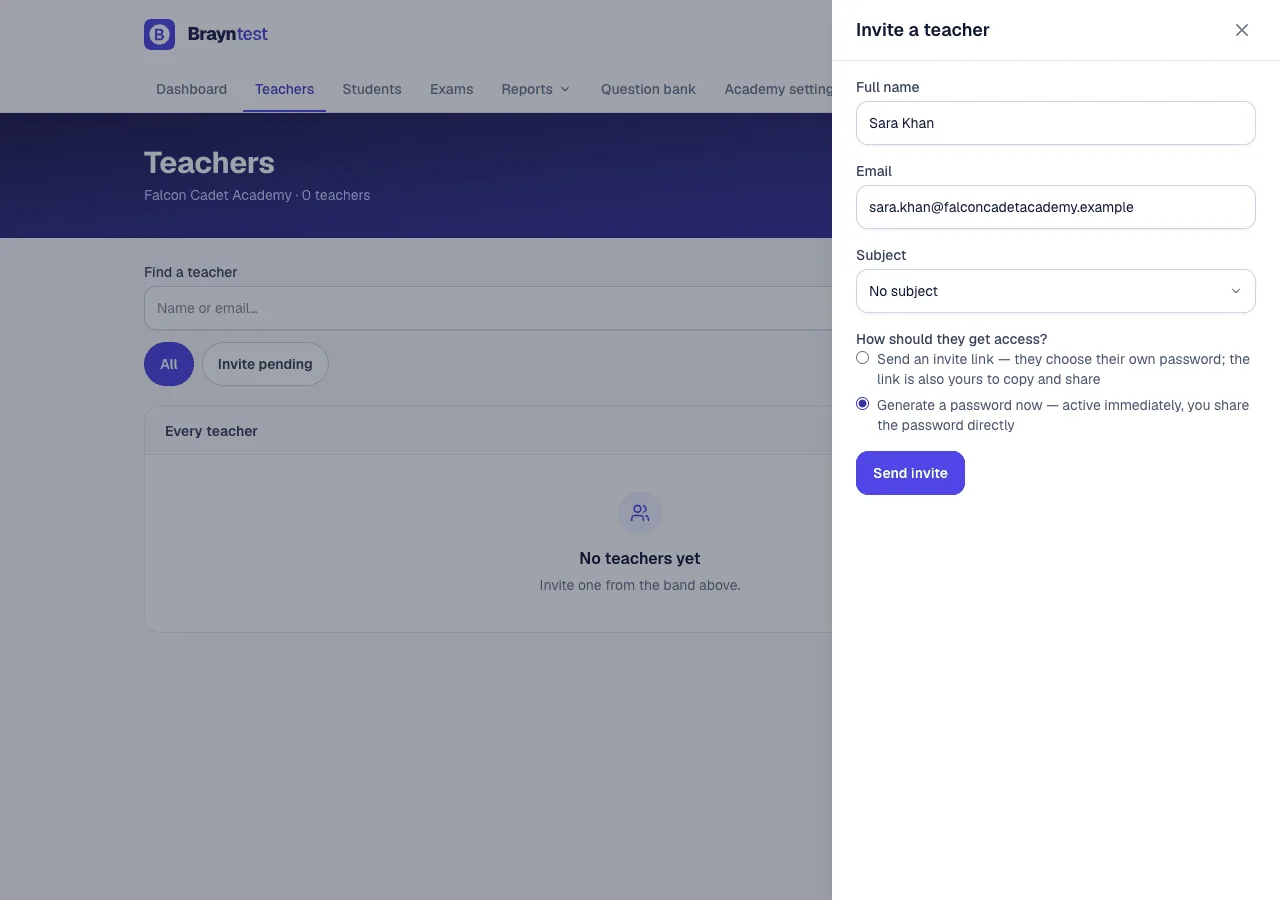
On the Teachers page, tap "Invite teacher" at the top and fill in their name and email. Choosing "Generate a password now" makes their account active immediately, so you can share the password with them directly.
7. Share the password
The password is shown once, right here — copy it and share it with your teacher however you normally would. It's never shown again; if it's lost, make a new one from the teacher's ⋯ in the list.