Class progress: see how your class is doing
Your class's month or week at a glance, who has tests not attempted (with a WhatsApp reminder to the parent), each student's detail and their parent's link, and Excel.
1. Open Class progress
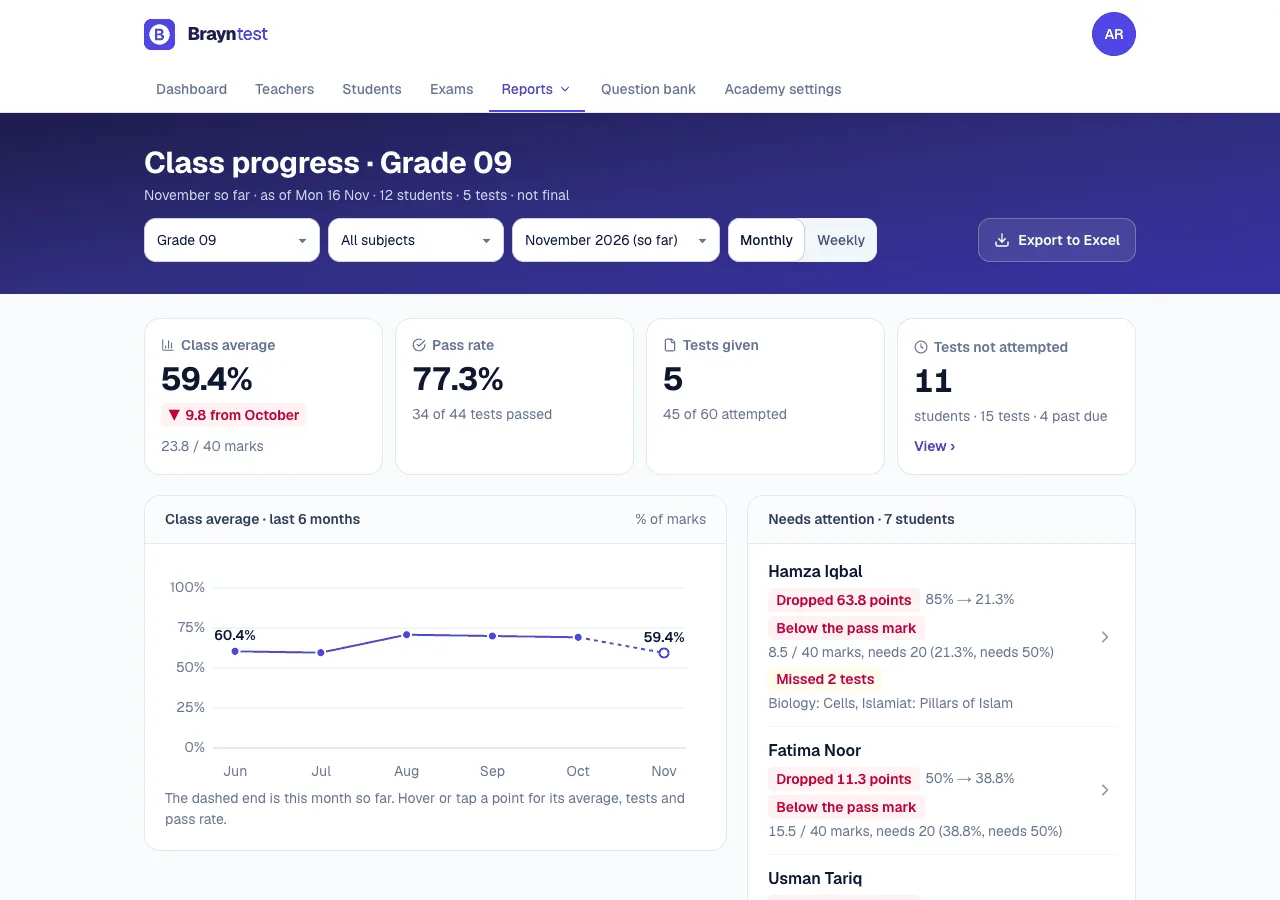
Open Reports › Class progress. Choose the class, a subject (or All subjects), and the month or week. At the top you see the class average, the pass rate, the tests given (and how many of the students' tests have been attempted) and how many students have tests not attempted. This month is "so far": it changes as tests are taken.
2. Tests not attempted
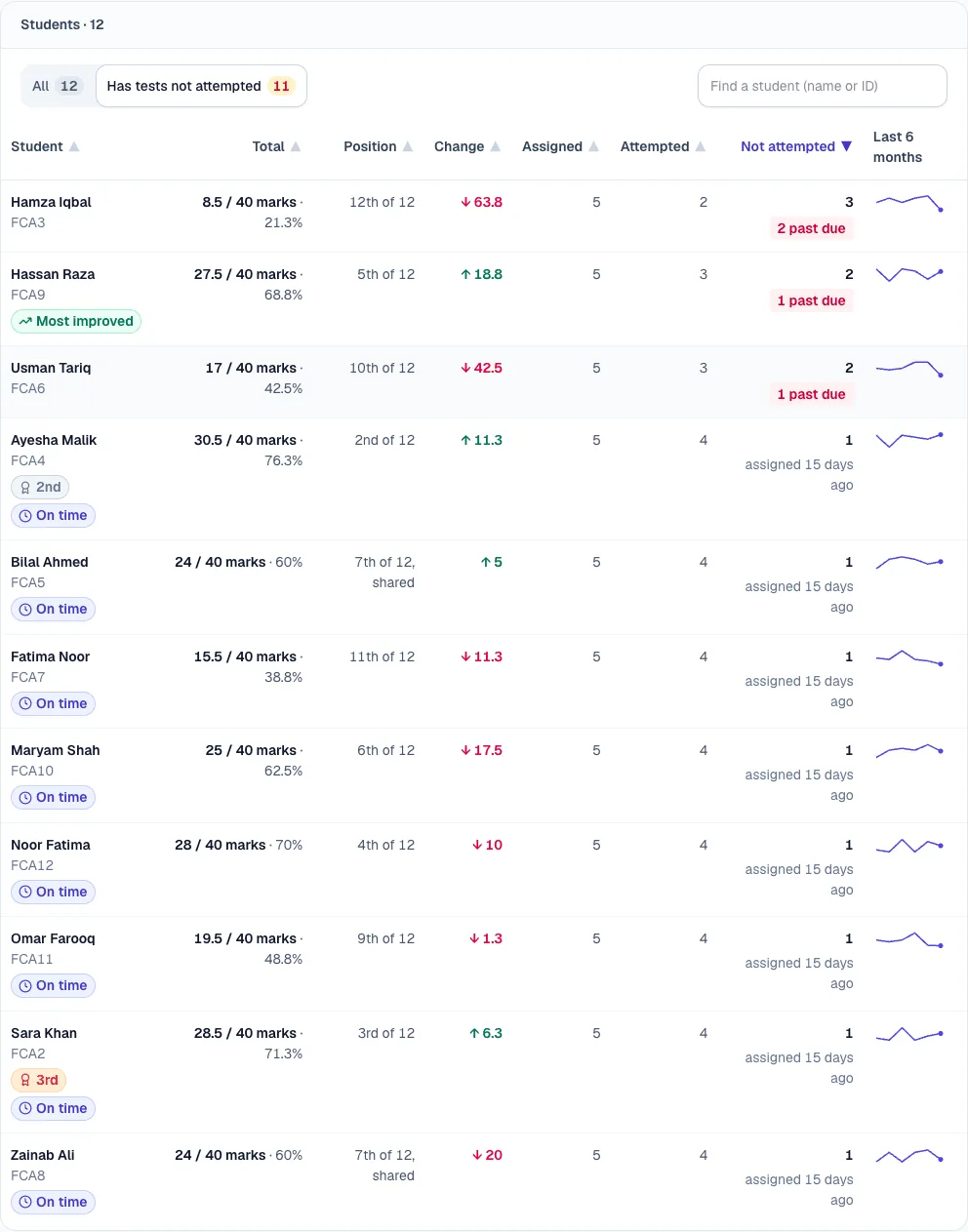
Tap the "Tests not attempted" box at the top: the students list shows only the students with tests not attempted, most first. Each says how long their oldest test has been waiting ("assigned 9 days ago"). Red means a test is past its due date; amber means a test without a due date has waited a week or more; anything assigned recently stays plain.
3. Remind the parent, or share their link
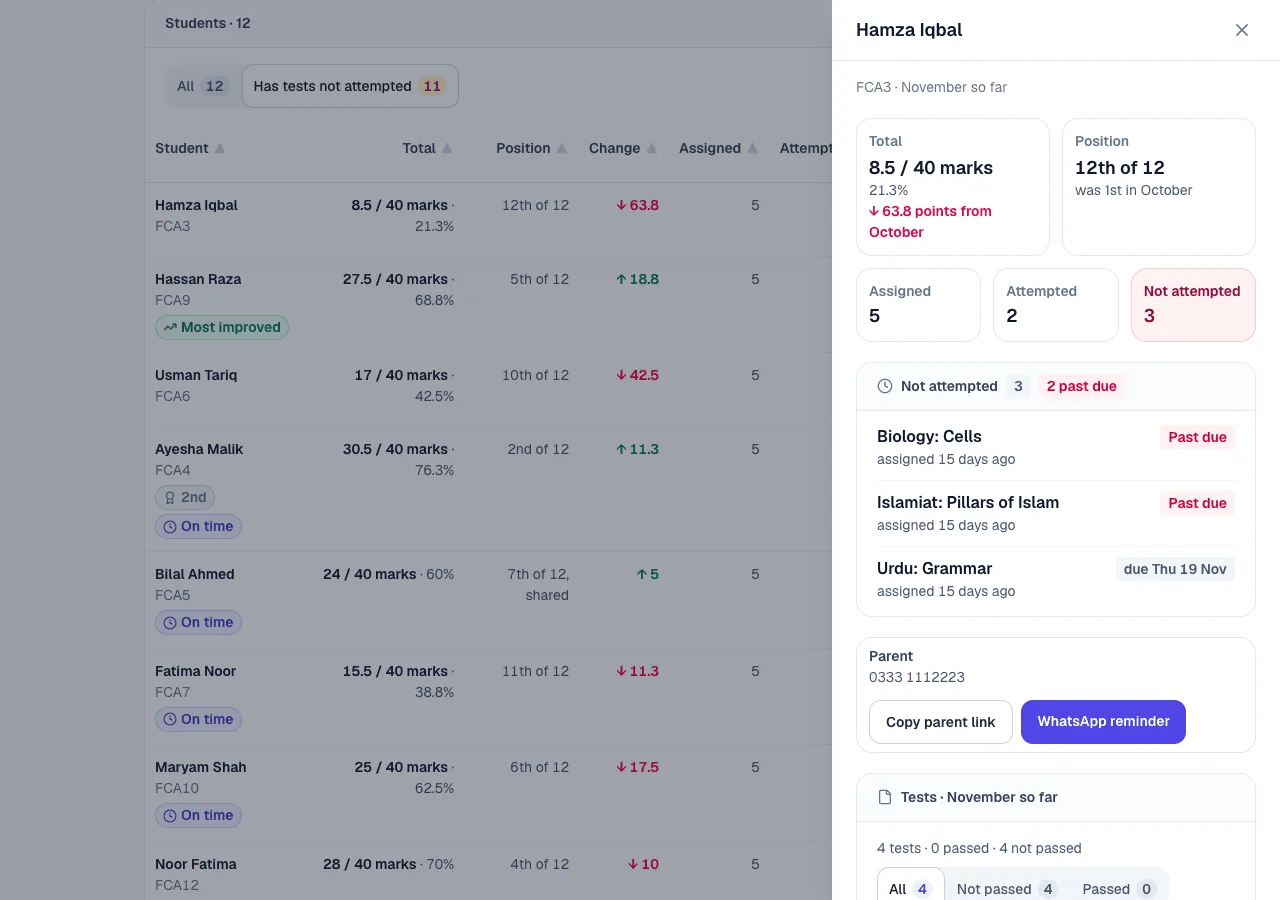
Tap a student to open their detail: the tests they haven't attempted, soonest due first, each with how long it has waited. Tap "WhatsApp reminder": WhatsApp opens with a short, polite message to the parent naming those tests. No number yet? Tap "Add number". "Copy parent link" gives you the family's private link from day one, even before their first report.
4. Every student, and their detail
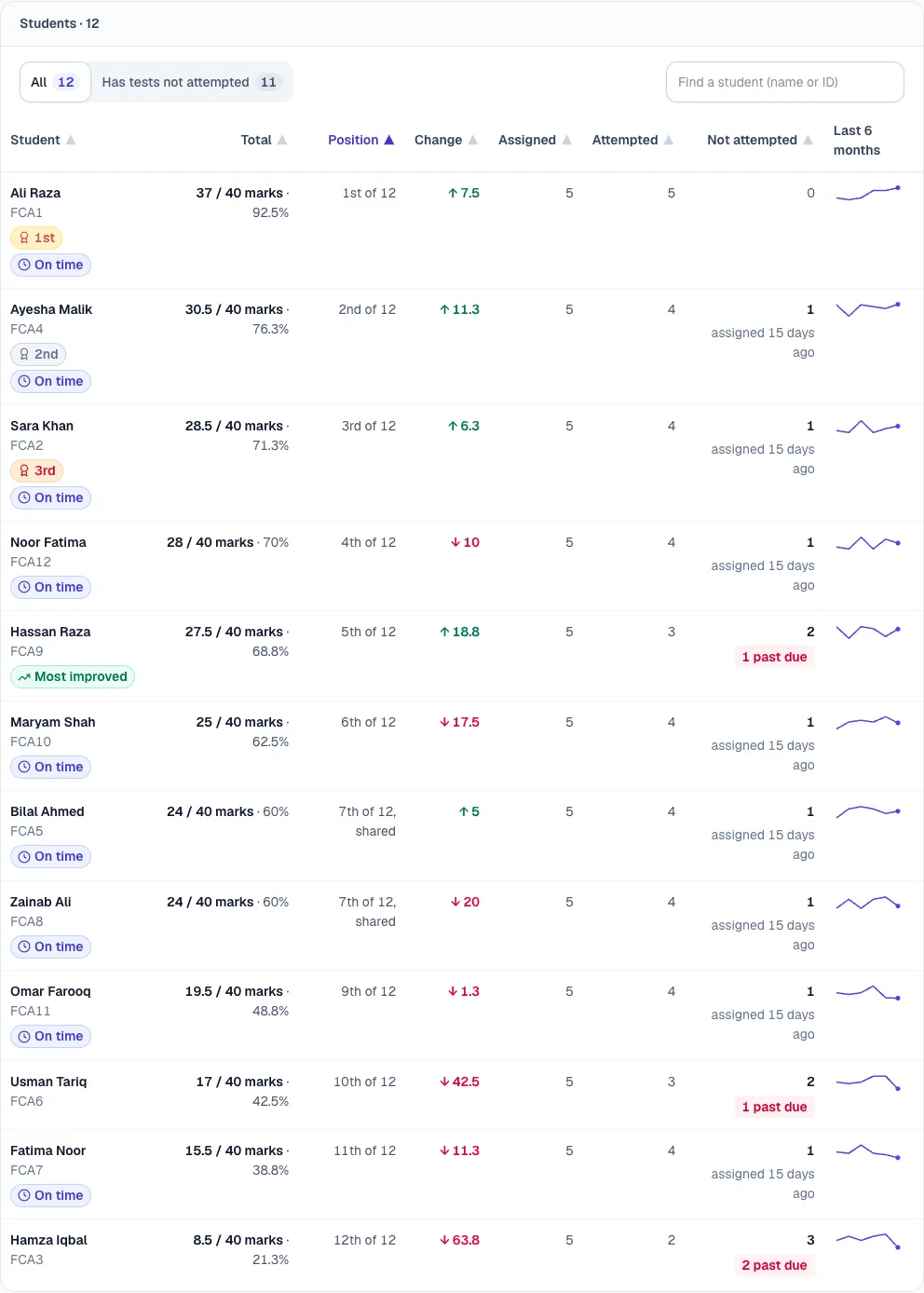
Students lists everyone with their marks (like 25 / 30 marks · 84%), position, change from last month and their tests. Tap a heading to sort; tap a student to see all their tests, their topics and their last six months. "Needs attention" lists anyone who dropped 10 points or more, is below the pass mark, or missed 2 tests.
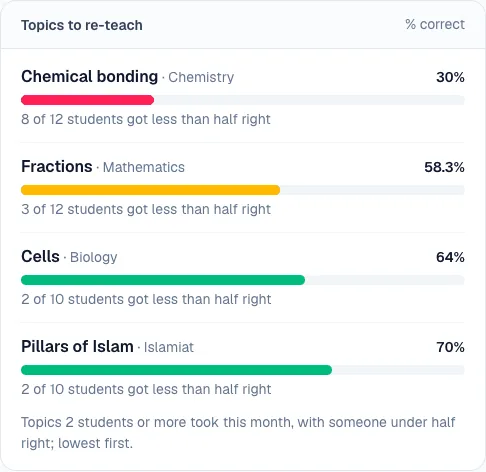
5. Topics to re-teach
Topics to re-teach shows the topics your class got most wrong, with how many students got less than half right. Subjects shows the class average in each subject, weakest first: red is below the pass mark, amber is just above it.
6. Export to Excel
Tap "Export to Excel" at the top (on a phone, tap ⋯ first). The file has the overview, every student, every test, the tests not attempted, subjects and topics, for the class, subject and month you chose.